
In the next part of our technology interview, we asked a number of people: Describe your computer system setup and tell what parts you feel are most important for your productivity. (679) I was surprised at how many Mac users we had. Obviously everyone's setup is based around their particular needs, but there are some great tips in here. OS X itself is great for my productivity. In the year and a half I've been using a Mac, I've had only a few trivial computer problems, all easily solved. The two programs that most add to my Mac productivity are Quicksilver and TextExpander. To my mind, Quicksilver's versatility alone is a good reason to use a Mac. TextExpander, like the … [Read more...] about Interview: Computer Setup
Technology
Cost vs. Benefit for Productivity

Most people are really bad at comparing cost and benefits. Hybrid cars are a good example of this. For example, the cost of the cheapest (that I could find) new gasoline Honda Civic is around $14,800. The cost of the cheapest hybrid Civic is $22,000. Assuming that you drive 13,000 miles per year, the hybrid will save you $369 per year in gas--assuming gasoline costs an average of $2.80 per gallon. So you are paying an extra $7200 to save $369 per year. It will take nearly 20 years before you end up saving money with the car. Even if you consider that the government will give you something like an extra $2,100 off your taxes for buying the hybrid, it will still take nearly 14 years … [Read more...] about Cost vs. Benefit for Productivity
Photo Diary
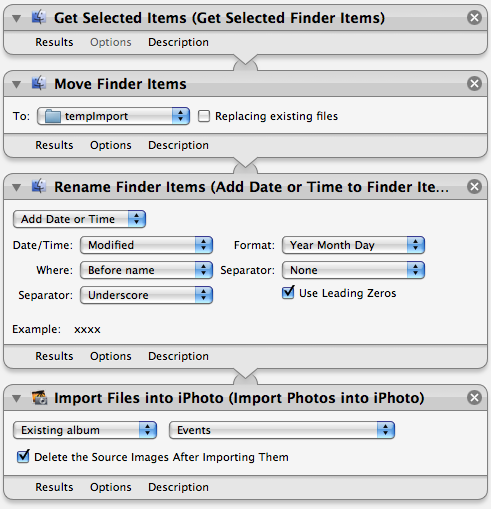
With inexpensive digital cameras and ever growing storage capacity, it is easy to create and maintain a very large quantity of pictures. My personal photo library starts in 1998 and provides a fairly detailed chronicle of my life for the past 11 years. In many ways, it is the most accurate diary or journal of my life events over that time period. If I want to know when we went on a particular trip, I can look up the date in our photo library. If I want to know who attended a particular event, I can look it up there, as well. I find that occasionally running through all of my pictures helps me remember events that would otherwise be forgotten--particularly in remembering the … [Read more...] about Photo Diary
Paperless Infrastructure

Businesses have much to gain by moving to paperless communication with their customers. Just think how much money credit card companies could save if even 5% of their customers switched to paperless communication. The problem is that most companies seem to get the whole idea of "paperless" wrong. Their solution for people who want to be paperless is that they will send you an email notifying you that you have a statement. Then you can log into their website and download the statement as a PDF. This is about equivalent to having a mailman who knocks on your door to tell you there is a letter for you at the post-office. This reflects a type of arrogance (or stupidity) that is typical of … [Read more...] about Paperless Infrastructure
Interview: Technology Investments

We interviewed a number of bloggers and asked: How do you decide if a new technology is worth investing in or whether it is a waste of time? (692) Here are their answers. I was impressed with how many people have a framework or set of questions they use to decide if something is really valuable to them or not. If I'm not sure, I wait. I'm not an early adopter and I'm pretty frugal with my money, too. A product has to prove itself before I'll buy it. Trent Hamm from The Simple Dollar (rss) If a product doesn't have a collection of Amazon reviews, I figure it is probably too soon to know how well it works. I like to evaluate technology before I invest in it. For example, if … [Read more...] about Interview: Technology Investments
Interview: Learning New Technology

We interviewed a number of bloggers and asked: How do you learn a new piece of technology? (968) Here are their answers. I play with it! If my mind doesn't start flooding with lots of ways it will save me a ton of time, I abandon it. If it's not intuitive to learn, forget it. In today's world there is no excuse for any technology to be difficult to learn. Ariane Benefit from Neat & Simple Living (rss) Giving yourself plenty of time to just "play" is important. You shouldn't buy a complicated new digital camera 30 minutes before you want to use it to capture a once in a lifetime event. I unpack, fire it up and start using it. I toss the manual in the corner and … [Read more...] about Interview: Learning New Technology
Adobe ConnectNow
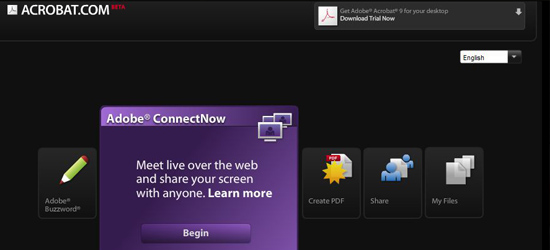
In business or school settings, communication over the internet has brought about many efficient ways to communicate with others not in our immediate vicinity. Although the most productive communication is done in person (in most situations), tools such as email, instant messaging, and now Adobe ConnectNow can make life much easier. ConnectNow features an all-in-one integration of many computer-related communications tools. It allows for the use of webcams, microphones, and file sharing, as well. After the user signs up for an account, the program automatically creates a URL that you can invite participants to type in. They then can chat, share video and other information with … [Read more...] about Adobe ConnectNow
Check List for Email

I am amazed at how many people are using email that is broken. Yes they get their messages, but they have to jump through all kinds of hoops to make things work right. Worse, many people have setups that are actively exposing their passwords to anyone who cares to look. Here is a checklist of essential items for an email provider. How does your solution rate? Webmail and Mail Client Synchronized Ability to Send from any Connection No Plain Text Passwords Secure Connection Backups Adequate Storage Size Anti-Spam Anti-Virus Aliases Mobile Connections Strict Terms of Service Now lets look at each of these items in a little more detail, because some of them aren't … [Read more...] about Check List for Email
Adobe Buzzword
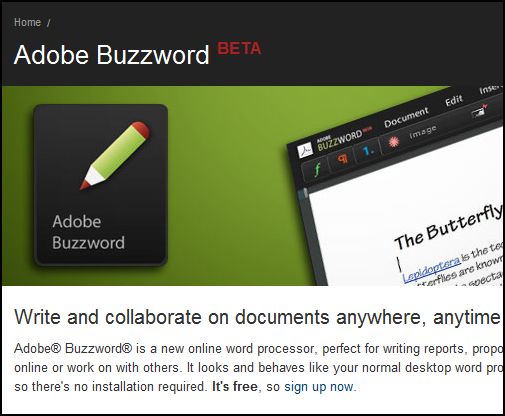
Though most computer users are familiar with and use Microsoft Word or a similar product, there are alternatives that many are not aware of. Finding trustworthy software that does not inhibit your productivity can be a challenge. However, the developers at Adobe have come up with an online word processing program that functions much like Word does and has the benefit of being free. As this application is a web based program, it does require an internet connection for the user to access and work on his or her documents. This has a definite up-side, though. Collaborative work For those that write with co-authors or need things to be proof read, Buzzword provides the unique service … [Read more...] about Adobe Buzzword
Interview: Effective Gadgets
In this next interview, we asked people: What gadgets do you use on a regular basis and how do they help you work more effectively? (940) There was variety in the answers, but I thought it was interesting how many people feel a timer is one of their most important gadgets for getting more done. 1) Timer to keep me focused and learn how much time things really take. 2) Digital Voice Recorder to record all the inspirations I get while driving. 3) Notebooks and pens EVERYWHERE so if I get distracted from what I'm doing I can write down the distracting thoughts and get back to focusing. 4) DVR / TIVO - I never watch live TV and I record all the educational shows related to my work … [Read more...] about Interview: Effective Gadgets
The Downside of Macs

In general, I am happy with using a Mac. The operating system is very well designed and gives me everything I want from Linux without the complexity. The hardware is well designed and thought out and is (for the most part) a pleasure to use. However, there is one area that Apple is sorely lacking in and since I often mention how I like using a Mac, I felt I should take the time to mention what I hate about Apple--the repair process. When I buy a laptop, I expect to use it very heavily for 3 to 4 years. I expect it to be powered on about 75% of that time. Given the mechanical nature of laptops and the complexity that goes into their construction, I expect to have some type of … [Read more...] about The Downside of Macs
Lotus Symphony Review
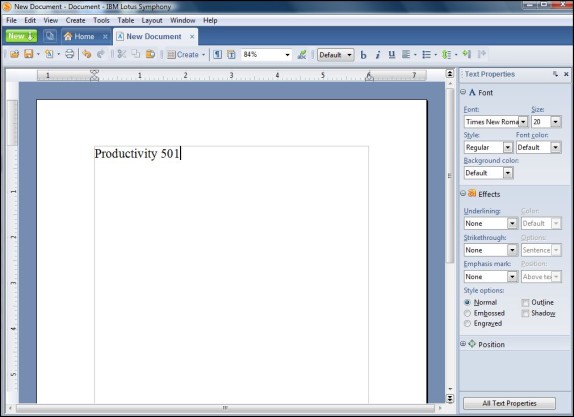
Most people have heard the expression, "There is no free lunch." While this may be true in some situations, it isn't always true in the realm of application software. Desktop publishing is one area where there are not a whole lot of alternatives. Microsoft hold the biggest share of the market, by far. However, IBM has come up with a free product called Symphony, which includes capabilities similar to a Microsoft Office Suite. Although the two programs are similar, they are, by no means, mirror images of each other. First Impressions Though the Microsoft Office Suite has just undergone a major update, some find the new layout a bit more confusing than they did the old. The word … [Read more...] about Lotus Symphony Review
Dealing with Gadgets

I have to admit, I'm a gadget lover. I like playing with phones, cameras, personal organizers and all kinds of electronic devices. I'm not quite as much an addict as I used to be, but I still like mobile electronics. Some of these gadgets can be really big time savers and a good investment. Other gadgets are great fun to use, but the time they save is offset by the time they cost. Then there are the gadgets that make you think you are being more productive, but actually make you waste time. Here are some of the things that I look for in a gadget to help make me more productive: Better Use of Downtime – Everyone spends time waiting for planes, waiting for appointments, driving in … [Read more...] about Dealing with Gadgets
Effective Web Browsing

Most people have a collection of sites that they like to check every few days. Unfortunately, checking a few sites can turn into several hours of pointless surfing without any real benefit. Here are some strategies that will let you maximize your productivity while using the web to stay up to date. Set aside time to visit your favorite sites. If you don't create space for it, you'll end up opening your browser everytime you are faced with a task that you want to procrastinate on. Avoid this by setting up a specific time. This can be in the morning before going to work, at lunch time, in the evening. It doesn't matter when it is, but set up a time and get into a schedule. Set a … [Read more...] about Effective Web Browsing
Relenta Review
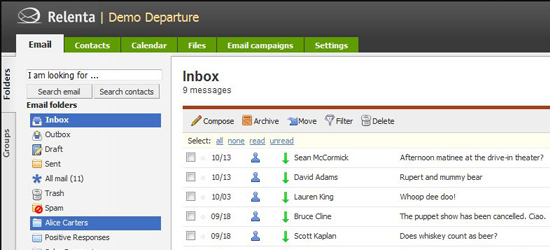
During the course of a day, many of us find ourselves using to-do lists and other means of getting thoughts and tasks out of our minds and into a trusted place of reference. For a business, keeping employees aware of tasks and duties in an organized fashion can be a challenge. From a customer service point of view, making sure that a customer is not overlooked is certainly very important. Since much of the communication in the business world is done through email, companies are finding that it is difficult to consolidate communications so that everyone is "in the loop." Relenta CEO Dmitri Eroshenko states that, "Relenta keeps everyone on the same page...literally." And the software does just … [Read more...] about Relenta Review
As a Child I was Conned

When I was in grade school, we talked about the future. We watched films about the huge technological advances that were just around the corner. I remember dreaming about the day we would have robots and devices to handle every mundane task in our lives. We would only spend our time on tasks that were either exceptionally important or remarkably enjoyable and fulfilling. Technology has made some very significant advances over the last 20 some years. We have miniature personal communication devices, powerful computers the size of a small book, video recorders that fit in your palm, a worldwide network that is virtually free to use, but I still feel like I was conned. Instead of … [Read more...] about As a Child I was Conned
Attention Spans and the Internet

In classrooms and homes all across the nation, teachers and parents are sometimes left wondering what happened to their children's attention spans. We often hear older generations commenting disparagingly about the way younger people always seem to be hard to entertain. Some just call this phenomenon being "spoiled," but is it just the children that are losing their patience? The Internet One of the chief factors in the change of attention span and reading habits that we are seeing is being attributed to the internet. Specifically, the internet is being targeted because it encourages "skim reading" instead of the more old fashioned "in-depth" kind of study that our civilization is … [Read more...] about Attention Spans and the Internet
TripIt Review
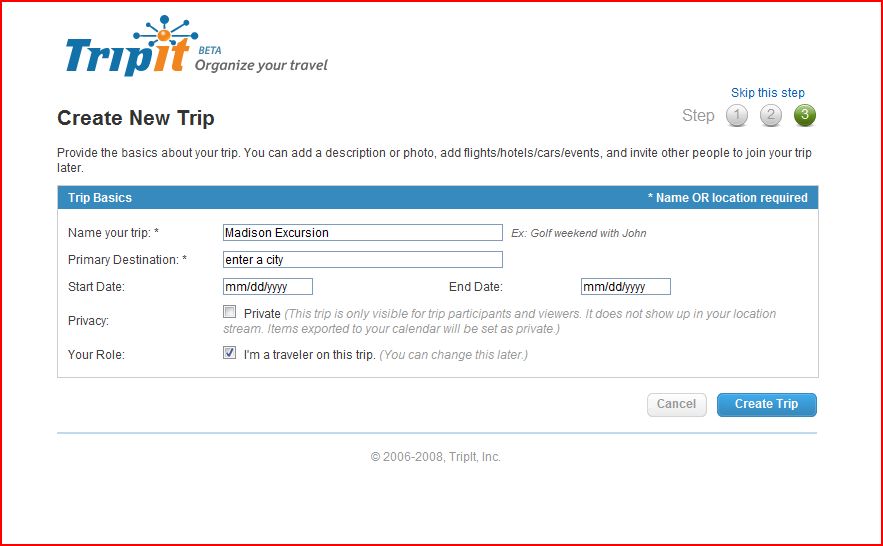
Though vacations are intended to be a time for creating a stress-free environment and enjoying some time off, they can quickly turn into another stressful situation. Most people will know what I mean when they remember the map shuffling, wrong turns and itinerary confusion. In other words, mass chaos! Though it is probably not possible to eliminate the stress of traveling, there are some effective tools that can help vacationers organize their travel information into a single, decidedly un-confusing plan. One such tool is a product called TripIt. This helpful web-based tool allows the user to integrate all of their travel plans for a trip into a central document. The program takes the … [Read more...] about TripIt Review
Dropbox Review
We have been looking at several different types of file sharing and online storage tools here at Productivity 501. Each one has useful features that make it stand out. The same principle continues with this review of Dropbox, an online utility that works on computers running Mac OS, Windows or even Linux. Dropbox Features One of the neatest things Dropbox can do is that it will sync files from one platform to the next. For example, if the user wants files from his or her Mac synced with those of their PC, it is no problem for the product to move between operating systems. Any changes are synced with all enabled computers through the web. One neat thing is that the program shows the … [Read more...] about Dropbox Review
Webnotes Review
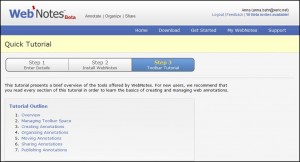
There are many jobs and tasks today that involve very extensive research and preparation. With the advent of the internet in recent times, the search for information for students, employees and those at the executive level is much simpler and more convenient than it was several decades ago. The internet has many advantages that we could discuss; however, it does have one shortcoming for those that are conducting extensive research. If the articles were on paper already, the researcher could easily jot down some notes directly on the paper, sharing his or her thoughts with colleagues and fellow students. It could be argued that the person could print the information from the web pages, … [Read more...] about Webnotes Review
SugarSync Review

Ever felt like you were tied down by carrying around too many gadgets? For those that use both Macs and PC's, transferring files across platforms can be time consuming or downright difficult, causing many to cart around two different machines to have access to both sets of files. However, the developers at SugarSync have come up with a better way of doing things. Staying connected There are a few programs out there that sync mobile devices with your computer. SugarSync not only does this, but also syncs files across the Mac and PC operating systems and automatically backs up those files to your own, personal SugarSync web site. This web site is secure, and allows the user to … [Read more...] about SugarSync Review
Password Resolutions for 2009

Our passwords give us access to a number of very valuable resources. They control access to our bank accounts, photos of our families, email correspondence, and all kinds of other information. As valuable as all this information is, it is amazing how little effort most people put into making sure they have good passwords. Here are six password resolutions for 2009 to help protect your data with more secure passwords. 1. Resolve to use different passwords on each website. There are a few ways to do this. The most secure is to use a completely different randomly generated password on each site. If you use a password management program like 1Passwd this isn't too difficult. Another … [Read more...] about Password Resolutions for 2009
drop.io Review
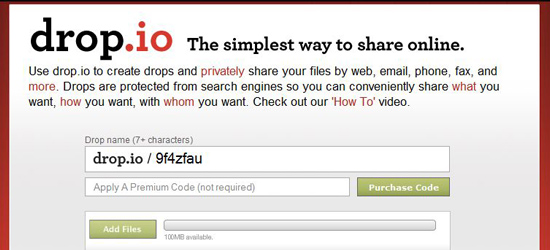
In today's business world, it is very important to be able to share information in a safe and secure fashion. While email attachments can take care of some kinds of file sharing, there is a limit to the size of file attachments. This is where a tool such as drop.io becomes useful. However, drop.io is far from being a simple file sharing service, although it remains simple to use. Some of the abilities this tool possesses are the options to view the uploaded files in a media, blog or system view, record voice mail for the drop, and many others. How drop.io works Drop.io works by creating specific information storage spaces for information uploaded through "drops." Users can share … [Read more...] about drop.io Review
Laptop Contingency Planning

If you have a laptop, there are three things you should plan on happening: Theft Dropping Data Loss If you are not preparing for these situations, you are asking for trouble. There are three main things you need to do to handle these areas: Security - If someone steals your laptop, what information will they have access to? All of your data? Damage - If your laptop is damaged, how long will it take you to get back up and running? Data - If all of the data on your laptop is gone, do you have a way to recover it? Security Your laptop security could be as extensive as encrypting your entire hard drive. The big thing you need to do is think about what would happen if … [Read more...] about Laptop Contingency Planning
The Problem With Media

One evening I'm reading a hard cover book. The next morning when I get in my car, I start playing the audio version through the car stereo at the point I left off. While waiting for a lunch appointment, I read a few more pages off my cell phone. Later on at gym, I listen to 15 minutes of the book on my iPod. The next morning, I finish off the book on my eBook reader while on a long train ride. If you haven't figured it out, the paragraph above is pure fiction. It represents the way I want to consume media. While all of this is technically possible, publishers' view of how people will read books doesn't allow for this type of usage in any cost effective manner. They will want to sell you … [Read more...] about The Problem With Media
Box.net Review
Collaboration on large, complex projects can be a big hassle. Giving out hard copies can create an even bigger mess if someone loses his or her copy of the information! Most of the time it is just plainly more productive to solve a problem once and for all, instead of solving that same dilemma multiple times. The people at Box.net have come up with a neat new way to share and edit information efficiently, making it possible to access all informational aspects of a project in the same place! This product streamlines the communication between team members or departments efficiently and competently. However, although Box.net is a logical choice for the workplace, it could also be used for … [Read more...] about Box.net Review
10 Articles on Managing Email
Managing Email: The Great American Timesuck-CEO Blog Though email was intended to make our lives easier, sometimes it does just the opposite! This article provides a list of suggestions that would be helpful to anyone that feels slightly buried by the mountain of messages lurking in the corners of their inboxes. Sharepoint: Managing Access Request Emails-Shankar's Musings At times, programs dealing with email can become slightly confusing because of the convolutions one must go through to work with them. This article offers some helpful advice for those that need a few tips dealing with access request emails. Managing Email Stress-Nicky Jurd Sometimes, though we know what needs to be … [Read more...] about 10 Articles on Managing Email
Investing in Education

Education is an investment in the future. Just like investments have different rates of returns, studying different things will give you different payback. There are generally two types of education available to people after high school. A technical education prepares you to do specific tasks. A general education prepares you be able to learn. Many people don't understand the difference between these two types of learning. Going to massage school may seem great in the short term. It doesn't take too long to learn and the pay is significantly better than what you can get from a job right after high school. However, it doesn't really prepare you for changing jobs in the future. A … [Read more...] about Investing in Education
My EVDO Connection

The Internet lets me work from just about anywhere. In this video, I talk about using an EVDO connection to get the internet in areas where there is a cell phone signal, but no wired options. It includes a speed test comparing the cellular connection to a cable modem and talks about some of the bandwidth limitations from various carriers. Here is the video from VIMEO. You should be able to click the HD button watch it in high definition if you like. Broadband EVDO Speedtest Demonstration from Productivity501 Let me know what you think of these videos--particularly if it works better to use YouTube or Vimeo. I'm still trying to decide if they are worthwhile to do so let me … [Read more...] about My EVDO Connection
9 Programs Worth Buying for OS X

Here some of the software I have spent money on and that was well worth worth the cost. Most of these deserve their own post and screencast just to show you how truly useful they are, but for now, here is a high level overview of each program. 1Password - I owned this software for about a year before using it. It was part of a MacHeist packaged deal. I didn't think I would ever want to use a password manager. (Real men keep their passwords in their head right?) Grant mentioned that it was a must have piece of software, so I finally decided to try it out. It really is incredible. I've been blown away by how much time I was wasting dealing with passwords. If you deal with passwords for … [Read more...] about 9 Programs Worth Buying for OS X
Interview with Kevin Butler & Giveaway

Fellowes, a company known for paper shredders, is promoting some of their ergonomic non-shredding products. Their approach was interesting. I was contacted and asked if 1. I'd like to try out some of their items, 2. if I'd like some free stuff to give away, and 3. if I'd be interested in interviewing their certified ergonomic consultant. I was particularly intrigued with the chance to ask a professional ergonomist some questions. This post contains Keven Butler's answers. Kevin is a Board Certified Professional Ergonomist and works as a consultant for Fellowes, Inc. Make sure read through to the bottom for our first ergonomic giveaway courtesy of Fellowes. 1. What is the most … [Read more...] about Interview with Kevin Butler & Giveaway
Perfect Tools

One of the biggest hindrances to personal productivity is the search for perfect tools. Let's consider an analogy. John is a carpenter and he wants to be the most productive carpenter he can possibly be. To reach this goal, he decides he needs the best tools possible, so he sets out to find the perfect hammer. John visits many stores and tries out different hammers. They all work fine, but he notices subtle differences. He finally settles on a wonderful hammer that he uses for a week, but then he discovers that it gives him a blister, so he sets out to find a better hammer. John may or may not ever find the perfect hammer. However, the productivity gain between a "good" … [Read more...] about Perfect Tools
Omnifocus Review
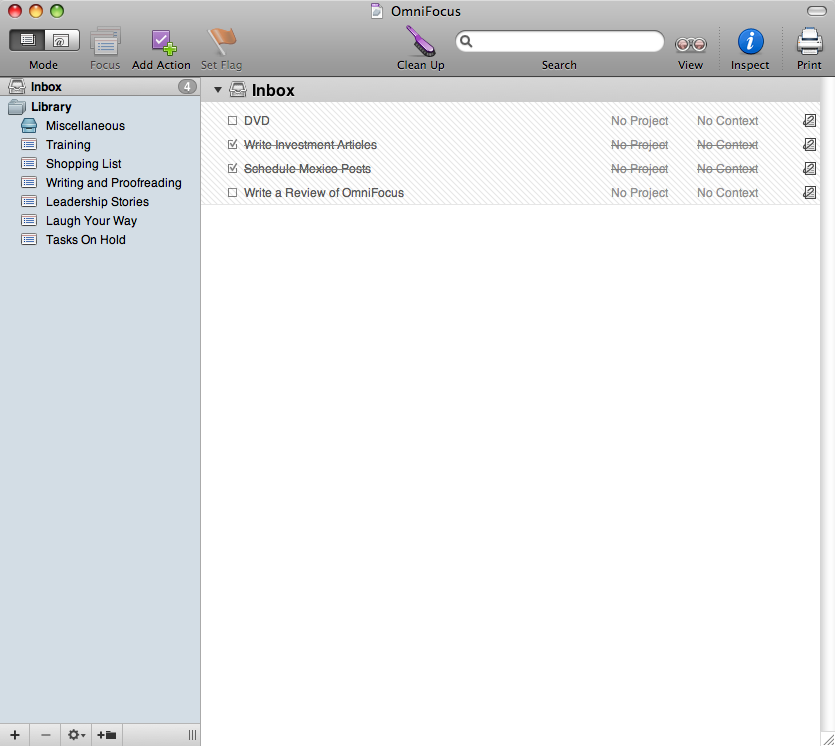
In our lives, as tasks build up, stress tends to build proportionally with the number of them that are present in our memories. In addition to worrying about the time needed to finish these tasks and the skills required to accomplish them, many of us are stuck worrying that we will forget what we needed to do in the first place! For those of us that need a bit of a hand in writing down and categorizing our everyday to-do list, the team at Omnifocus has produced a remarkable software product that allows a person to put tasks into a system that gives them the ability to prioritize, categorize and organize their tasks in a way that seems logical to that person. The best feature of Omnifocus is … [Read more...] about Omnifocus Review
Five Things You Didn’t Know about OS X Terminal
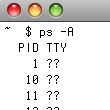
This video shows five things that most people don't know about using the terminal in OS X. 5 Things You Didn't Know about OS X Terminal from Productivity501 on Vimeo. Just in case you want to make sure the items look interesting before taking the time to watch, the five things are: You can drag folders and files into the terminal. How the open command works for files and applications. Safari style tabs in terminal. The "say" command. Copy to and from the clipboard using the command line. If you have some killer tips for using the terminal please share them with others in the comments. … [Read more...] about Five Things You Didn’t Know about OS X Terminal
Reader Question: Wireless Setup

Mark, I'd be interested in reading what else you have done to remove the wires from your office. I'm looking at as much as possible to wireless and I'm a bit stumped as to where to start. --James Here is a general overview of our setup. Apple Airport Extreme - This sits on a chest of drawers across the room from my desk. It hooks into DSL and also into an external 500GB hard drive. Our house is small enough that it covers the whole thing, but in the past I've exanded the network with additional Airport devices. I have also used an Airport Express to hook up desktop computers that have a network connection, but not a wireless card. I use WPA encryption on the wireless network. I … [Read more...] about Reader Question: Wireless Setup
Encrypted Email Links

If you are interested in sending and receiving encrypted emails, these links are a great place to get started in understanding the process and configuring your system. What is a Digital Signature - David Youd An excellent explaination of how digital signatures work. The graphics help make this easy to understand. The article focuses on how it works by telling short stories instead of dealing with all the technical background. How PGP Works - Network Associates This is a good introduction to public/private key encryption. PGP (pretty good privacy) is one implementation of public/private keys. The article can be applied to other solutions as well. Encrypted E-Mail Company … [Read more...] about Encrypted Email Links
Three Things You Didn’t Know About Excel
Excel is really a "swiss army knife" type tool. I have used it for all kinds of odd things including HTML for long lists, creating a checkerboard, analyzing server log files, projecting cell phone usage and analysis whether people preferred live or telecast music at a church overflow room. Excel has so many hidden little features that it is easy to overlook some of the capabilities that let you do a complicated task quickly. This video demonstrates three capabilities of Excel that the average user does not know about. Three Things You Didn't Know About Excel from Productivity501. (If you have trouble seeing the video, turn on HD. You'll have to go to Vimeo, but you can watch it … [Read more...] about Three Things You Didn’t Know About Excel
DevonTHINK’s Classify Feature

As part of my paperless office experiment I'm finding that scanning is actually the easiest part of the whole setup. A lot of what is difficult is finding a workflow that makes sense. For example, if your assistant scans in 250 documents from your file cabinet, you need some way to classify and organize those into your system. Obviously you can look at each one and figure out where it goes, but this is very slow. DevonTHINK has a feature that helps with this. It looks at the text in the document you want to classify and then looks at the text of documents already in the system. Then it suggests a location that puts it with similar documents. This is extremely useful--especially when … [Read more...] about DevonTHINK’s Classify Feature
Should You Use a PDA?

Many people believe that having a personal digital assistant like an iPhone/IPod Touch, Palm Pilot or Windows Mobile device greatly increases their productivity--regardless of whether or not it is true. These devices can be great, but they don't help everyone. It is important to consider the cost of technology, not just in terms of money, but in terms of time. I've seen people spend hours and hours trying to get their calendar synchronized when their pocket calendar did the job much better for a fraction of the cost. This article should help give you some things to think about when it comes to deciding if a PDA would be beneficial to you. To start off with, lets look at some reasons you … [Read more...] about Should You Use a PDA?
Bento
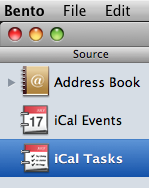
I was sent a free copy of Bento to try out. Here is my take on the software after playing around with it for awhile. We are giving the software away to a reader. See the bottom of this post for info on how to win. What is it? Bento most reminds me of the database program that came with Appleworks on the Apple IIc. It isn't so much that it works the same, but it is geared toward the same type of market. People who need to store database type information without becoming an expert at understanding databases. The program runs on OS X and has the nice look and feel that you'd expect from an Apple application. Libraries and Collections Bento uses the idea of Libraries and Collections. … [Read more...] about Bento
Interview: Hard Drive Organization

We asked a number of bloggers to share their tips for keeping their computer organized. The answers fall into two camps. One group prefers a good folder hierarchy while the other prefers no hierarchy and just uses search. I use the latter method for my email, but I'm still getting a lot of benefit from my file folder structure. What is your most important tip for keeping your computer hard drive organized? (837) A folder structure that makes sense is essential. I've seen people with a folder called "Work" and a folder called "Personal" and nothing more, each containing hundreds or thousands of files without any semblance of organization. I've also seen structures with more folders … [Read more...] about Interview: Hard Drive Organization
Reader Question – Emailing Your Boss

How to write emails to your boss Don't try to impress with the length of your email. Most of the time they will appreciate a short and to the point message. If you need to explain something in more detail, consider listing the main points as bullets at the top and add the rest of your explanation at the bottom or as an attachment. This allows them to quickly grasp the issue without reading through several hundred words. Another advantage of a short message is that it is more likely to get read. If your boss is busy, they may read a short email and leave longer ones to be read later. You can help your boss prioritize your emails, by adding a short code in the subject. For example, … [Read more...] about Reader Question – Emailing Your Boss
Paperless with the Kindle

James Harris has some interesting thoughts on going paperless when it comes to magazines. In particular he looks at how his Kindle has changed the way he reads. I have a Sony Reader which uses a similar screen and I agree with him that it is a very pleasurable way to read. Here are some quotes from his post. We are really very close to having a paperless society that pundits have talked about every since I can remember. People always exclaim they hate reading off the computer screen even though they spend hours a day doing so. Now the Kindle offers a better way to read, even better than paper, and that starts to suggest going paperless is possible. I'm a little less optimistic. I … [Read more...] about Paperless with the Kindle
Getting the Most from a Large Monitor
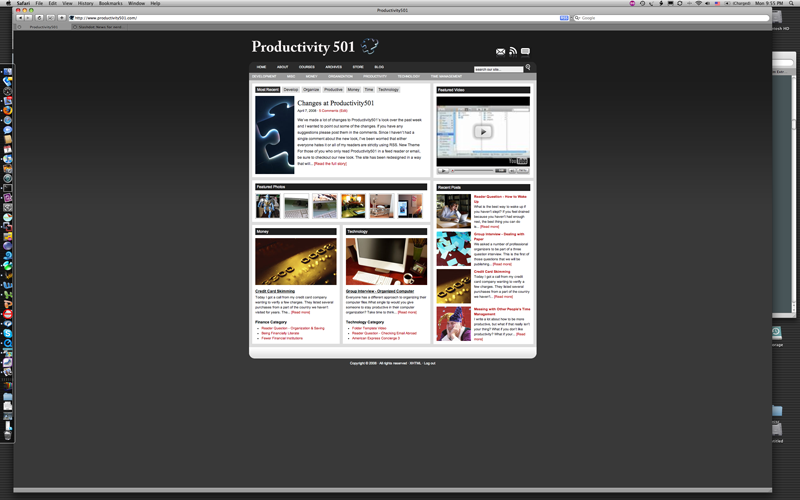
Recently I read about a study that showed productivity increased (up to 52% increase for certain tasks) when people used a larger monitor--up to 24 inches. After that productivity started dropping off again. Having used monitors 24 inches or larger for the past 3 years, I've learned a few things about getting the most from screen real estate. I think I know why productivity doesn't continue to go up with even larger screens. To use a larger screen effectively you have to break a lot of bad habits developed over years of using smaller display devices. This is a lot harder than it sounds. In this article I want to explore some of the ways to get more from your screen as well as some tips to … [Read more...] about Getting the Most from a Large Monitor
Group Interview – Organized Computer

Everyone has a different approach to organizing their computer files.What single tip would you give someone to stay productive in their computer organization? Take time to think about the top-level folders. How do you normally refer to, or think about, things? Then label the top level accordingly and put the ensuing files where you intuitively would refer to them. I confess, I tried to convince myself that because it is a computer, somehow it would organize me! Alas, I find that I have to be intentional and schedule weekly sessions with the computer just like a would a client. Steve Roesler from All Things Workplace (rss) I’ve actually had good luck with self organization using DEVONThink. … [Read more...] about Group Interview – Organized Computer
Folder Template Video
Several months ago, I did a post where I talked about creating folder templates. I've created a short You Tube video that shows the folder templates in action. I'm a bit disappointed with the You Tube quality, but I'm going to post it anyway in hopes that someone will find it useful. … [Read more...] about Folder Template Video
Reader Question – Checking Email Abroad
How do I access my email from a foreign country? In most countries you can check your email just like you do in the US. If you are using a web mail provider like Gmail or Yahoo, you just have to find an internet connection. Many countries have internet cafes where you can use their computer for the internet by paying an hourly fee. If you are in China or another country where they limit citizen's access to certain sites on the internet, it might be more difficult to check your email. If you are traveling with a laptop and want to download your mail, things should still work about the same as in the US. Many internet cafes will let you connect into their network with your laptop for the … [Read more...] about Reader Question – Checking Email Abroad
American Express Concierge 3
On Mondays we've been discussing working with a remote assistant. We've taken a brief side trail for a few weeks looking at actually trying to use American Express' concierge service. This week I'm going to show an attempt to use the service to find housing in Mexico. My wife and I lived in Durango Mexico for a few months and couldn't seem to find any type of furnished housing. I figured the concierge would be good at locating this type of thing--especially since dealing with lodging in other countries seems to be something American Express advertises they do well. Here is the message I sent: I am looking at spending some time in Mexico next fall. Specifically I am looking at the … [Read more...] about American Express Concierge 3
American Express Concierge 2
Last Monday we looked at using the American Express concierge service for scheduling a tuneup on my car. This week we will try something else. I have been looking for radiometers to send as a corporate gift to some of my clients. (A radiometer looks light a light bulb but instead of a filament it has metal vanes that spin in the sunlight.) Unfortunately most of the ones I've found for sale were packaged for kids science experiments. The radiometers are fine, but the packaging doesn't look very "corporate". I figured this sounded like a job for super concierge, so I called them with a request. I explained what I was looking for and in particular asked them to find a radiometer with … [Read more...] about American Express Concierge 2
Michael Sampson on the Dvorak Keyboard

We've talked about the Dvorak keyboard before when I learned Michael Sampson was making the switch. Since it has been a few months, I thought it would be interesting to checkup and see how it was going so I sent him a few questions about the change. checkout his responses below. What promoted you to switch to the Dvorak keyboard? There was one main reason that I switched: I was suffering from severe RSI in my left lower arm and hand, and I needed to find a better way of doing things. I knew of the Dvorak layout, and had recently read Mark Hurst's excellent book (Bit Literacy) in which he talked about his own transition from QWERTY to Dvorak. So I did some online study on the Dvorak … [Read more...] about Michael Sampson on the Dvorak Keyboard