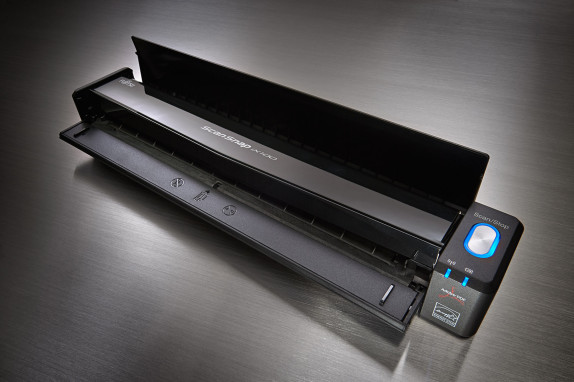
When I was offered a Fujitsu ScanSnap iX100 to review I was skeptical. I'm pretty happy with my Evernote Edition ScanSnap and didn't really see the need for another scanner in my workflow. I have a pocket on my Broadmore computer bag that I use to hold any papers I accumulate on the road. If I needed something scanned before I got back to my desk, I'd just use my phone's camera to put it in Evernote. I didn't really see why I'd need or want to use another scanner that could only scan one side of a paper at and required feeding in a single sheet at a time. When I opened the package the first thing I noticed was how small it was. I'm not sure what I was expecting, but the pictures I had … [Read more...] about Fujitsu ScanSnap iX100 Review
paperless
How to Make an Insanely Simple Paperless Filing System
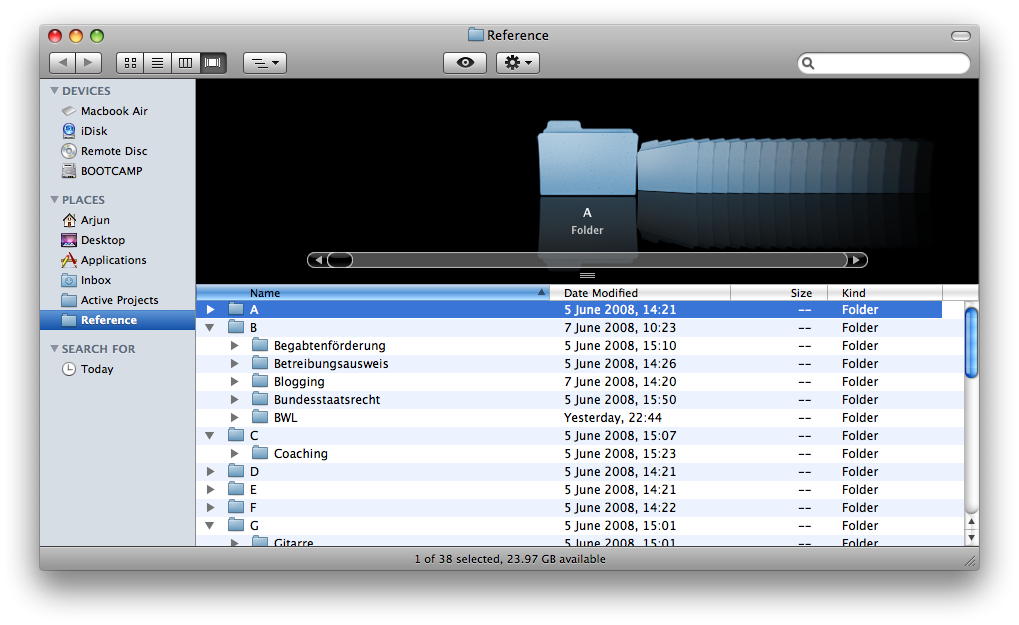
This is a guest post by Arjun Muralidharan, author of The Productive Student, a new blog about productivity for college students and all productivity buffs. Mark's paperless project has always been a favorite of mine to follow. He uses DevonThink to manage incoming documents from his Fujitsu ScanSnap. It's a good system, but for me, it lacks two things: It doesn't handle all my files, such as Word documents, Keynote presentations and other file types well. Third-party software independence. In accordance with GTD, I like to have a comprehensive system that's cross-platform and can live independently from software such as DevonThink. While a system with DevonThink will work … [Read more...] about How to Make an Insanely Simple Paperless Filing System
How to Create a Scanned Digital Signature
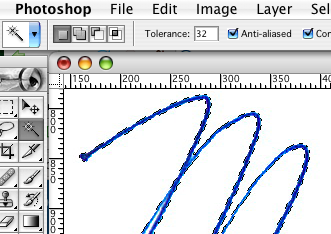
If you like this article you might also enjoy our post about how to use your signature to sign documents in Acrobat. We also have a number of other articles about going paperless and one on Digital Signatures and Encryption that might be useful. If you want to create a scanned electronic version of your signature, there are several ways to do it. The "right" way would be to send your signature to a company that will create a truetype font of your entire signature so you can print it at any size and still have the beautiful vector drawn lines. The easy way to do it is to scan in your signature and remove the background. If you make it large enough and scan at a high enough … [Read more...] about How to Create a Scanned Digital Signature
Letting Go of Paper
I've been surprised at how difficult it is to let go of my paper. As I move more and more of my paper to a digital format I keep finding myself hesitating when I get ready to shred a document. We are trained so very well to keep our paper records. Has anyone else experienced this? I think part of the issue is that most people have suffered some type of data loss with their computer. Even though I have multiple systems in place for backup I'm still haunted by losing important files years ago. Another issue is the physicalness of paper. You can hold paper in your hand. Spread it out. Write notes in the margin, etc. Not that I ever do that with my car insurance statement or gas … [Read more...] about Letting Go of Paper
Paperless Office Stories
We recently interviewed a group of businesspeople about their experiences with going "paperless." For some people, things went very well. For others...interesting mishaps ensued. However, each response would be helpful information to anyone that is looking into setting up a paperless office. We have been working toward a paperless office for some time, we try to do all contract exchanges and paperwork electronically, and generally this works very well. However, one requirement in our business space is that we have to have a copy of an ID document for each guests who rents accommodation from us (Europe wide law, applies too to hotels). We used to take a copy of an ID document at time … [Read more...] about Paperless Office Stories
10 Paperless Office Myths
The paperless office is no longer being held back by technical challenges. Everything you need to "go paperless" exists. The current barriers are cultural and process issues more than anything technical. In this article, we are going to look at ten of the common myths about going paperless. 1. Technology isn't ready for a paperless office The components of a paperless office are readily available and fairly inexpensive. The technology is readily available not only to scan in your existing paper, but to eliminate the creation of new paper through better workflow tools. While the technology for going paperless is readily available, the rate of adoption for these tools and this system is … [Read more...] about 10 Paperless Office Myths
Paperless Office – Reducing Paper Creation
When people think of a paperless office, they usually focus on how to store documents in a digital form. This is important, but it misses the real point of going paperless. The real benefit comes from creating documents in way that they are digital for the entire lifetime. Once a document gets printed out, you've broken the paperless life cycle. This is why scanners are simply a stop-gap solution for paperless offices. If your paperless system is set up right, scanners should only be needed to handle documents from people who aren't yet paperless. So how do you create documents that can remain paperless for their entire life cycle? Here are some areas to think about: How will others … [Read more...] about Paperless Office – Reducing Paper Creation
Tuesday’s Tip: Stop Communication You Don’t Need
Most everyone gets a barrage of emails, telephone calls, and physical mail that they don't really need. I'm not necessarily talking about spam. I'm talking about newsletters from organizations in which you are no longer active, donation requests from non-profits that you gave to years ago, etc. Most people just accept the interruption and toss these items into the trash, but a better option is to try to stop them altogether. Taking a few minutes to send a note asking to be taken off their mailing list can save you a tremendous amount of time in the future. If you get a monthly newsletter in the mail that you identify, consider opening and then toss in the trash, it can easily take … [Read more...] about Tuesday’s Tip: Stop Communication You Don’t Need
Text and Image Documents
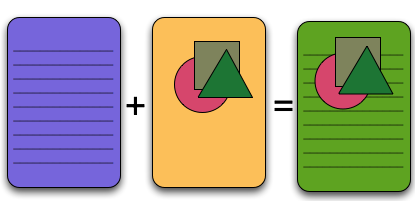
There are two basic types of documents you can use in a paperless office. The first type of document is text based. These are formats like .TXT .RTF .DOC, etc. These store text as editable information. You can go in and change the document, fix spelling, copy sentences, etc. The second type of document is an image based document. This includes formats like .TIF, .JPG, .PNG, .GIF, etc. These documents just represent a bunch of pixels. The computer can't edit the words themselves other than by deleting pixels and putting new pixels down. You can't copy a sentence and paste it into another program if you are using this format. The advantage of the text-based formats is the … [Read more...] about Text and Image Documents
Shred Everything

Even before I started my paperless office experiment, I purchased a shredder. The amount of private information on the paper I was throwing out started to concern me when I realized that I had no idea where most of it was going. The novelty of turning every random scrap of paper kept my normal waste basket empty for the first week. After this fascination wore off I started asking myself "Do I really need to shred this?" Surprisingly, most of the time I found it was better to shred pretty much anything that came in the mail. Flyers and other mail that gets sent to everyone is spared from shredding, but most of the junk mail goes into the shredder. Here is some of my reasoning for some … [Read more...] about Shred Everything
Paperless Infrastructure

Businesses have much to gain by moving to paperless communication with their customers. Just think how much money credit card companies could save if even 5% of their customers switched to paperless communication. The problem is that most companies seem to get the whole idea of "paperless" wrong. Their solution for people who want to be paperless is that they will send you an email notifying you that you have a statement. Then you can log into their website and download the statement as a PDF. This is about equivalent to having a mailman who knocks on your door to tell you there is a letter for you at the post-office. This reflects a type of arrogance (or stupidity) that is typical of … [Read more...] about Paperless Infrastructure
New Fujitsu Scanner
If you've been following my paperless office experiment, you might be interested in Fujitsu's new ScanSnap model. The S1500M for Mac and S1500 for Windows looks to replace the 500 line. Most of the specs are similar, but the 1500s have some more advanced paper handling and sensing to prevent double feeds. … [Read more...] about New Fujitsu Scanner
Digital Letterhead
PDF For Laywers has a nice discussion about the benefits of using a digitized letter head. Basically he recommends creating a letter head that is part of your word processor template so you can print your letter and letter head together (to paper or to a PDF). Some good thoughts and worth a read for people experimenting with paperless offices. … [Read more...] about Digital Letterhead
Going Paperless – Other Resources
There use to be serious technical hurdles to creating a paperless office. That isn't the case any more. The components of a paperless office are readily available and not particularly expensive. Read on for some great resources that will help you "go paperless". 8 Tips for Going Paperless-Sheila Riley Now that technology offers so many different options for organizing documents and facilitating communication, using telecommunication instead of regular mail is a good option for many people. This article gives some ideas that were developed and used by the Blue Valley school district in Overland Park, KS. The Perils and Perks of Going Paperless-James Champy As technology … [Read more...] about Going Paperless – Other Resources
The Problem With Media

One evening I'm reading a hard cover book. The next morning when I get in my car, I start playing the audio version through the car stereo at the point I left off. While waiting for a lunch appointment, I read a few more pages off my cell phone. Later on at gym, I listen to 15 minutes of the book on my iPod. The next morning, I finish off the book on my eBook reader while on a long train ride. If you haven't figured it out, the paragraph above is pure fiction. It represents the way I want to consume media. While all of this is technically possible, publishers' view of how people will read books doesn't allow for this type of usage in any cost effective manner. They will want to sell you … [Read more...] about The Problem With Media
Jamming Paper Shredders
After a large batch of scanning items into my paperless office, my shredder seemed to be jamming more than normal for my assistant. After helping her clear the stuck paper I got to wondering if there is a way to minimize the jams. Fellowes claims they have created a jam proof shredder. It look like it basically just stops before the paper gets packed in so tight that you can't remove it. Has anyone used one of these? Do they work very well? … [Read more...] about Jamming Paper Shredders
DevonTHINK’s Classify Feature
As part of my paperless office experiment I'm finding that scanning is actually the easiest part of the whole setup. A lot of what is difficult is finding a workflow that makes sense. For example, if your assistant scans in 250 documents from your file cabinet, you need some way to classify and organize those into your system. Obviously you can look at each one and figure out where it goes, but this is very slow. DevonTHINK has a feature that helps with this. It looks at the text in the document you want to classify and then looks at the text of documents already in the system. Then it suggests a location that puts it with similar documents. This is extremely useful--especially when … [Read more...] about DevonTHINK’s Classify Feature
5 Tips for Dealing with Mail
Everyone gets mail. It can consume a lot of your time, effort and storage space to process and store. Here are 5 tips to help you manage your incoming mail. Open your mail over a trash can. This simple tip can help make sure that any mail that doesn't belong in your house gets taken back out. If you have a trash can outside, that may be an even better place to open it. This is a particularly good way to make sure that the envelopes and generic mailings don't clutter up your work area. Get off the lists. If a company has you on their mailing list, but you don't want to receive anything else from them, simply ask to be taken off. It is better for the company, better for the … [Read more...] about 5 Tips for Dealing with Mail
Quick Paperless Update
My paperless experiment is going well. Most of my incoming paper gets filed in DevonTHINK and I've been very happy with the the results. DevonTHINK will let you do stuff like put the same file in two folders. Once you get a number of documents in the right folders, DevonTHINK can automatically suggest where to put new incoming documents. This is surprisingly helpful and extremely accurate. The ScanSnap is good with flat paper, but sometimes has trouble with items that have been folder (think anything that comes in the mail). I'm contemplating looking for a higher end scanner just to simplify the scanning process. It isn't bad, but it isn't a smooth as I'd like it to be. … [Read more...] about Quick Paperless Update
Paperless Office

These links and summaries about going paperless were compiled by my assistant in India. (In an upcoming article I'll be talking about what it is like to work with a virtual assistant.) 6 tips for a 'paperless' office - Joseph Anthony People get greater return on their hardware, software and technology investments while they partially get rid of the paper clutter. The author focuses on 6 basic things that one has to remember while moving to a paperless office. The reader gets the pointers to remember while shifting to a paperless home or business office; he is also familiarized with the benefits. Acrobat to a Paperless Office - Julie Starr This article focuses on the benefits of … [Read more...] about Paperless Office
Paperless with the Kindle

James Harris has some interesting thoughts on going paperless when it comes to magazines. In particular he looks at how his Kindle has changed the way he reads. I have a Sony Reader which uses a similar screen and I agree with him that it is a very pleasurable way to read. Here are some quotes from his post. We are really very close to having a paperless society that pundits have talked about every since I can remember. People always exclaim they hate reading off the computer screen even though they spend hours a day doing so. Now the Kindle offers a better way to read, even better than paper, and that starts to suggest going paperless is possible. I'm a little less optimistic. I … [Read more...] about Paperless with the Kindle
Group Interview – Dealing with Paper
We asked a number of professional organizers to be part of a three question interview. This is the first of those questions that we will be publishing over the next few weeks. Thank you to everyone who participated and shared their perspective. What is the single most important tip you would give to someone who is having trouble managing all the paper in their lives? "Recycle most of it as soon as it comes in the door." Melissa Michaels from The Inspired Room (rss) My trash can is right next to the mailbox. I've found that I can often get by without even bringing junk mail into the house. I've heard other people recommend that you open your mail over the trash can or recycle bin to … [Read more...] about Group Interview – Dealing with Paper
Portable Scan Snap S300
Fujitsu has released a portable version of the ScanSnap line of scanners. It can run on its own power cable or use power from the USB connection. This is particularly useful if you are traveling or working of your laptop with a battery. When running off the USB power it is a little slower to scan. When plugged into its own power connection it can handle 8 pages per minute. The S300 is only for Windows. It is fairly new, so they may release a S300M version sometime in the future. You can buy the S300 from our online store for $291. … [Read more...] about Portable Scan Snap S300
Another Scanner
A reader pointed me to the Fujitsu 6140. It is faster than the Scan Snap at 80 to 120 ppm (each side counts as one page) and seems to be a little more heavy duty in its construction. It looks like it uses dual rollers where the Scan Snap 510 and 510M only use one. This might help guard against misfeeds and paper jams. The 6140 comes with Kofax workgroup software that will handle some scanning tasks including processing bar codes scanned on documents. The scanner appears to only support the Windows platform. The 6140 is quite a bit more expensive with a list price of $1999. You can get it in the Productivity501 Store for $1,660. … [Read more...] about Another Scanner
Online Backup Options
I've been trying out several online backup tools. I plan to write in more detail about my experiences with each one later, but here is an overview. My wife and I travel quite a bit. While I can take an extra hard drive with us for backups, but this seems a bit pointless since the biggest threat to my equipment is probably theft. If someone breaks into my hotel room and steals my laptop, they probably aren't going to overlook an external hard drive. I need a solution that will give me quick access to all my information if my computer is stolen or damaged. Here are three services I've tried. If you have any suggestions of other services I should check out please post them in the … [Read more...] about Online Backup Options
Last Night
Last night I got a new electronic book device. It was the size of an 8.5 x 11 sheet of paper and had 600 dpi resolution. The quality was excellent. It worked in bright sunlight without a problem. I put all my scanned documents on it and found it was just as easy to read them as it was on paper and it was even easier to navigate and find documents than using the filing cabinet. I loaded it with all the PDF articles I wanted to read and found it worked flawlessly. Then I woke up. I was very disappointed. Should I be concerned that I'm now dreaming of becoming more paperless? … [Read more...] about Last Night
Is Acrobat a Necessity for a Paperless Office?
As work toward creating a paperless office, I'm coming to the conclusion that Acrobat is a necessity. Not the free version but the multiple hundreds of dollars standard version. This isn't a problem for me because my ScanSnap came with Acrobat 7 Standard. I was hoping to find that there was enough capabilities built into OS X or free tools to have something less expensive to recommend. Here are the things that I can't find good ways to do outside of Acrobat: Rearrange Pages - And Acrobat isn't great at this, but I can extract, remove, rearrange, or add pages as needed. In 7 it isn't particularly user friendly, but it is a whole lot easier than any other way I've found to handle … [Read more...] about Is Acrobat a Necessity for a Paperless Office?
Using Acrobat to Sign Documents
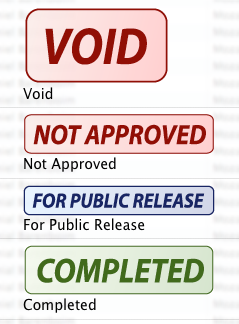
Acrobat is capable of doing two types of signatures. Technically the best way is using a digital signature. Not only can the signature show that you signed it, but it can also prove that the document wasn't changed after you signed it. If you deal with a lot of people who use digital signatures, this is a great way to go. Personally when I sign something it is usually to fax or mail. While I like the digital signature idea I just don't interact with enough people who could actually use it. Originally I was signing documents in Acrobat by creating my own digital signature and then attaching an image to the signature. Acrobat will use the image anywhere you place the digital … [Read more...] about Using Acrobat to Sign Documents
Papers – Paperless Office for Academics
A helpful reader pointed me to Papers. It is a well thought out program for managing academic papers on OS X. I've looked it over briefly and it looks pretty impressive. It integrates with PubMed and other online repositories allowing you to search and download PDFs while autopopulating all the metadata fields. Papers also allows you to take notes as you read articles and keep them with the PDF. It seems to be setup for working with existing PDFs, so there doesn't seem to be an built in OCR capabilities. If you are looking for a way to organize your research Papers is worth checking out. … [Read more...] about Papers – Paperless Office for Academics
Resolution Matters for a Paperless Office
As part of my paperless experiment I'm slowly moving my data to PDFs I've really started to notice the difference in resolution between my various computers. I recently got a new laptop with a 17 inch 1920x 1200. My previous laptop had the same sized screen but only 1440 x 900 pixels. On my older laptop it was difficult to read a full sized PDF--especially if the print was small. On my new laptop I'm finding that I can read print that was unreadable at the lower resolution. Here is a screen shot from the older laptop with the lower resolution monitor: If you are good at guessing you might be able to read it, but it is going to be difficult. Here is the same size (relative to … [Read more...] about Resolution Matters for a Paperless Office
New SnapScan for OS X
It looks like there is a new SnapScan out for OS X. I think the scanner itself is about the same, but the new version includes Acrobat 8.0 instead of 7.0. If you are looking at purchasing the scanner, you may want to make sure you have aren't getting the older version of the software. The PC version has had Acrobat 8 since June. … [Read more...] about New SnapScan for OS X
Paperless Update
I have still been working on my paperless experiment, but most of my planning has revolved around trying to figure out how to keep from wasting money on something only to discover I have to buy something else. I've also been working on the workflow side of things in trying to keep my documents digital and not simply revert to printing them out whenever I need to fax or sign them. I have had pretty good luck with some online faxing services that I hope to write more about in another post. Also I've had a chance to really challenge the ScanSnap scanner. While it doesn't compete with a $10,000 sheet fed scanner, I've been very impressed. The other day my grandmother had about 450 … [Read more...] about Paperless Update
Amazon Kindle
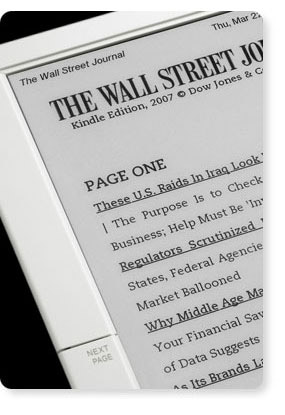
Today Amazon released their ebook reader called Kindle. I have the original Sony Reader and I've been pretty impressed with it. The new version makes a few small improvements, but is still a similar device. Even though the Kindle is based on the same e-ink technology, it takes a very different approach than Sony. One of the biggest differences it the way books are distributed. Kindle comes with built in EVDO networking. EVDO is the same technology used for high speed connections over the cellular network by Sprint and Verizon (AT&T uses something different). Instead of requiring users to get a data plan for their Kindle, Amazon packages the cost of the wireless service into the … [Read more...] about Amazon Kindle
On Scanning Your Signature
Several people have commented that scanning your signature is a bad idea because if someone got a hold of the file they could sign away everything you own. Obviously you should keep the file private. I wouldn't recommend attaching it to each of your emails or putting it on a web page or anything like that, but it is probably no more risky than anything else you do on a regular basis. Consider the following: If you ever write a check or sign a credit card receipt at a store, you are essentially handing a stranger a copy of your signature already. They could easily digitize it using the process I've just shown and use to sign things as you. Most of the time when you sign something, … [Read more...] about On Scanning Your Signature
Dealing with Signatures in a Paperless Office
With email, one of the main reasons I have to print things off is to sign them and fax or mail them back. As I transition to a paperless office I'm having to look at ways to sign documents without printing them out. There are really two types of signatures. The first is just an image of your handwritten signature. The second is a digital addition to the file that "proves" you were the one that signed it. By now digital signatures should be common, but they aren't. I'm not saying they aren't used in big companies, but the average web user isn't signing emails or anything else digitally. Right now most of the paper that requires my signatures needs to be faxed to someone. If I want … [Read more...] about Dealing with Signatures in a Paperless Office
Quick Update: Paperless Office
I am still working on my paperless office experiment. I've had an huge influx of consulting requests in the past 60 days, so I haven't dedicated as much time to this as I had originally planned. Here is a quick update on what I've found so far. Optical Character Recognition One of the most important parts of being able to search for your documents later is recognizing it as text. A generic scanning process simply recognizes the pixels and doesn't actually turn them into words. (A simple test to see if a PDF is storing data as pixels or text is to try to copy and paste a paragraph into a text editor.) I've found that for a proper workflow I need to make sure that the character … [Read more...] about Quick Update: Paperless Office
Paper that wants to be Shredded
Someone sent me this video of paper that wants to be shredded. It reminded me of a client of mine. I was coming in to do some consulting so I asked for a copy of their organizational chart to get a better idea of how everything was organized. I carried it around with me throughout their facility for about a week as a reference. Often I'd set it down on a table or desk while talking with an employee. When I really started looking at it in detail, I discovered that it had the salaries of all the executive level staff penciled in under their names! While it wasn't a problem for me to know their salaries, they should have at least warned me about the additional information. … [Read more...] about Paper that wants to be Shredded
Paperless Office – The Components
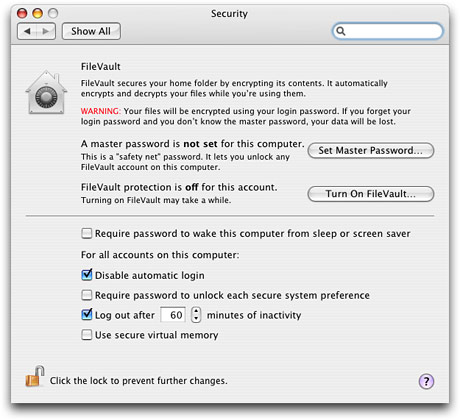
I've been doing a lot of planning as part of my Paperless Office Experiment. The comments on my first post have been very helpful in guiding me in the right direction. If you have any suggestions or experiences, please share them. The biggest portion of my planning has been in trying to identify the components necessary to make a paperless office workable. Simply adding a scanner won't make you paperless. You have to have a system that works together as a whole not just a few random pieces of technology. Here are the components I've identified as being necessary so far. I'd be interested in any input on things I may have overlooked. Scanner Most people start with a scanner when … [Read more...] about Paperless Office – The Components
Paperless Office Experiment
I've talked before about how the paperless office is still a dream. As I look around my desk right now, I have stacks of paper requiring my attention in various places. We are halfway through 2007. Seriously, weren't we supposed to have flying cars and robots to do the dishes and fold the clothes by now? A paperless office seems like it should be normal by now, but it isn't. One of the things that has hindered the adoption of paperless technologies is the fact that they concentrate on the "paperless office" instead of focusing on a "paperless workflow". For example, if I have a paperless office that requires printing out incoming documents, signing them and then scanning them back in … [Read more...] about Paperless Office Experiment