I’ve been doing a lot of planning as part of my Paperless Office Experiment. The comments on my first post have been very helpful in guiding me in the right direction. If you have any suggestions or experiences, please share them.
The biggest portion of my planning has been in trying to identify the components necessary to make a paperless office workable. Simply adding a scanner won’t make you paperless. You have to have a system that works together as a whole not just a few random pieces of technology.
Here are the components I’ve identified as being necessary so far. I’d be interested in any input on things I may have overlooked.
Scanner
Most people start with a scanner when they think of a paperless office. While it is important, it is more important to identify how the documents are going to be handled once they are on the computer and then work backwards to determine the best scanner that is compatible with the software you plan to use.
Here are some of the things to look for in a scanner:
- Automatic Sheet Feeding – If you are using a flatbed scanner it is going to be very tedious to handle multi page documents. Flat bed scanners are typically higher quality than sheet fed scanners, but they are much slower to use because you have to manually switch out pieces of paper. There are some flatbed scanners with additional equipment that give you a sheet feeder using the flatbed quality.
- Duplex – You want to be able to read both sides of a document. Otherwise it is going to be difficult to piece your information back together once it is on the computer. Ideally you want a scanner that can read both sides of the paper at the same time.
- Speed – If your are using a sheet fed scanner speed might not be quite as important. If you can just load 25 pages into it and then walk away it might not matter too much how long it takes. However, there are always going to be instances where you are trying to scan something that you need to use. In those cases, it is important to have a scanner that isn’t too slow. The faster your scanner the more likely you are to use it. Just having the technical capabilities to go paperless doesn’t give you a paperless office. You have to create a system that you will actually use.
At this point I’m leaning toward a Fujitsu S500M SnapScan. It is less than $500 and seems to have most of the features I’ll need. And it came highly recommended in the comments on the original post.
Shredder
Once you scan a document you need an easy way to destroy it. There are a very wide variety of shredders on the market. For a paperless office you need something that can handle a reasonable volume and is fairly secure. Older shredders simply cut the paper into strips. These can be easily pieced back together. At the minimum you want a “confetti” shredder that produces pieces 1 inch by 1/4 inch. The ultra secure shredders reduce paper to a powder, but these usually run a few thousand dollars.
One of the things I look for in a shredder is the ability to shred unopened mail. I want to be able to stick the entire unopened envelope from a credit card application in it without needing to open it and handle each individual piece of paper. The ability to shred CDs and credit cards is also handy.
I already have a shredder. It is the Aurora AS1015CD that I got at Walmart. The closest thing I can find online is the Medium-Duty AS1018CD Confetti-Cut Paper Shredder. So far the only thing that caused it even a slight problem was bubble wrap.
(Yes I know you shouldn’t feed bubble wrap into a shredder, but since it hasn’t ever jammed, I’ve been growing curious as to just how much I can feed it before it has a problem. The bubble wrap didn’t really jam anything, it just got wrapped around the cutters and took a couple pieces of normal paper before it cleared itself off.)
Secure Hard Drive Storage
Going paperless means that all of your information is going to be in one centralized place. While this is convenient, it is an identity thief’s dream target. If your computer were lost or stolen you want to make sure that they would not have easy access to all of your bank accounts, retirement info, etc.
So ideally you want your paperless office setup to encrypt your digital documents when you store them on your hard drive. These need to be saved in a way that even if someone steals your computer and gains access to the operating system, they could not access the files.
OS X has a feature called FileVault that does this. Your files are encrypted and a special password is assigned to them. After a period of not being used, it will prompt you to enter the password again before giving you access to the files.
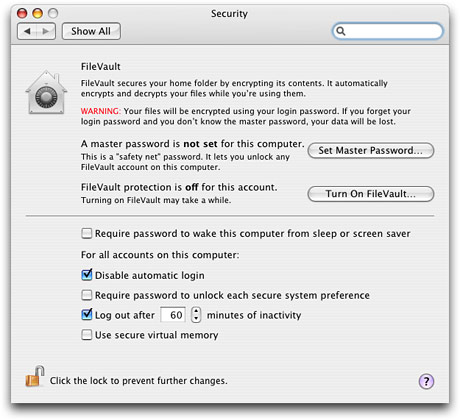
Other operating systems have similar mechanisms and there are third party applications that give the same type of security. It is important to realize that this type of setup will prevent you from retrieving your files without the password. If you die, your spouse will not have access to any of your records unless you have shared your password. I would suggest keeping the password in a safe place like a lock box along with a physical piece of paper along with other important numbers just to be on the safe side.
Document Management System
This is really the cornerstone of your paperless office. When you scan in a document you need some way to track it. It is possible to just use the file system as your document management system. OS X and Vista both provide a way to add metadata to files and this can be an effective way to track things. Spotlight and Vista’s search feature may be all that you need. Another alternative is to use Google’s desktop search to locate data.
While I like Spotlight, it has always seemed a little slow to me. Maybe when I upgrade to an Intel based processor I’ll be pleasantly surprised, but I’m planning on using an actual document management system for my needs.
One of the most important parts is having a mechanism to index the content of scanned documents. On many systems, scanning in a PDF results in a beautiful image of the page without any actual text data. That means unless you have tagged the file in some other way, you will never be able to locate it based on a search.
What you want is to have an invisible layer of text that is created through optical character recognition that is generated and kept as part of the PDF. I was pleasantly surprised when I discovered my CanoScan LiDE 70 and the included software does this automatically. However, I’ve since discovered that most other systems require a manual step to make this happen.
If you have a version of Acrobat Standard (or better) you can scan to Acrobat and let it do OCR. I’m not sure how accurate Adobe’s OCR package is, but still this requires you to manually tell Acrobat to perform OCR.
I’m looking for a solution that will allow me to scan directly into my document management system and perform the necessary OCR steps transparently. I want to push a button and put the document directly into the document management system. I suppose if it prompts me for a title or keywords, that would be ok but I don’t want to have to go through a 2 or 3 step process on each piece of paper.
DEVONThink Pro Office has been recommended as a good solution, so I’m currently trying to figure out if it can handle this type of workflow. If you go the filesystem rout, checkout our article on Simple Paperless Filing Systems.
Secure Backup System
With so much vital information being stored directly on my computer, I think I’m going to need to revamp my backup plan. I will probably keep DVDs or a hard drive in a lock box, but I’m considering the possibility of keeping an encrypted copy online, possibly using Amazon’s S3 service. .Mac has recently upgraded their storage limit, so it might be possible to keep an encrypted version of my documents synched with the .mac servers as another alternative.
High Resolution Monitor
Originally I used a 17 inch Powerbook with a 1440 x 900 screen and a 24 inch Dell monitor with a 1920 x 1200 screen. When I upgraded my Powerbook moved to a 1920×1200 built in display and a 30 inch 2560×1600 external monitor. The higher resolution isn’t so I can show an entire sheet of paper at only 5 inches tall. It does make it easier to read PDFs when I’m displaying an entire page on the screen and reduce the amount of time I have to spend scrolling around in a document. This is particularly important when dealing with multi column documents.
The large monitor lets you display two pages side by side for easy reading and the 1920×1200 monitor on the laptop gives me high quality when I’m on the traveling.
Portable Paper Replacement Devices
One of the common uses of paper, is to take with you. For example, you might print out a map to take on the road, print out your flight information when going on a trip or print out an article to read on a plane.
I’m not sure if you can really replace paper when it is used in this way, but I have a few devices that I plan to try to use. The first is my Blackberry. The second is my Sony eBook Reader that uses digital ink technology. I think I’ll still feel safer having my map or flight information on a piece of paper, but we’ll see.
Digital Signature Solution
One of the big reasons I print documents out currently is so I can sign them and then fax them to someone. I’d like to find a good way to handle digital signatures on PDF documents. The simple way is to just scan in my signature, however Acrobat has some capabilities that allow you to sign or encrypt your document with your personal key which allows people to verify that you indeed signed the document. I don’t know much about what is possible at this point, but I’m looking for something that will give me a single way of dealing with signed digital document–whether they are being emailed to an insurance agent in the middle of rural Nebraska or a banker who has the most elaborate setup for verifying digital signatures.
If you have any suggestions or comments, please let me know. I’m trying to harness the collective experience of my readers to help me be successful while staying under my $1,000 budget.
“If your computer were lost or stolen you want to make sure that they would have easy access to all of your bank accounts, retirement info, etc.”
Would _not_ have, maybe :)
Ref: Acrobat signature: What I did was scan my signature as a GIF file, make the background transparent, crop/size it correctly, then turn it into a PDF file. In Acrobat you can configure your digital signature to include a graphic, so you import your signature graphic and turn off all of the other signature information (date, etc.). On screen, you’ll see your signature graphic plus a checkmark, but when printed it’s only your signature. This combines your actual signature with whatever level of security you’ve told Acrobat to use. I saved the GIF signature to add to Office-type documents, which I can then PDF securely. (This is all done at work, where we have Acrobat Pro.)
How did you make the background transparent on your signature?
John – Check out our post on How to Make a Scanned Signature for steps to get the transparent background.
Hey Mark… Actually I did find that post after I posted. Nice tutorial. Unfortunately a signature that I have used for years seems to be a little hard to clean up. It has white specs all around the edges. Probably because it was done at low Rez with a fax machine. I tried also selecting by color but it’s still rough around the edges. I can’t tell if “Gimp’s” tool set is the same as Photoshop but it looks pretty close so I will keep futtsing around with it. So is GIF the best format to use?
gif or png are good formats to use for signatures because they usually won’t produce artifacts like JPEGs. I suppose you could use a loss-less TIFF format as well.
@Richard – Yes thanks. I do not want identity thieves to have easy access to my data. :)
@Scott – That is very helpful and sounds like an ideal setup. Where did you get your digital certificate to sign with? Is it something you developed internally or did you use some sort of third party provider?
For Document Management System, Google Docs can prove itself as an excellent example for docs and spreadsheets. No risk of loosing the data, accessible from anywhere with Internet, and most important- its paperless. All other ideas you mentioned are really good… I think I should seriously consider this experiment in our office as well ;)
I work for the government, so I have to have a certificate just to sign onto the classified network. I haven’t tried it at home; I’m sure there are a couple of “trusted third party” certificate companies, but I don’t know of any myself. I think I’ll start looking. I might give this paperless office idea a try.
I think once you upgrade to Intel, Spotlight will seem much quicker… I know “slow” on my MacBook is a full one-second to “search,” so make the jump! :)
Sounds like you’re off to a good start with this project. I “went paperless” back in 2003, and I’m 100 percent there — I don’t generate or use any paper, and I immediately process all the paper I receive (which isn’t much). It CAN be done, and it’s really not too hard when you get into it.
You might take a look at PaperPort as a document management AND scanning software. It’s simple to use, very effective, and cost effective (about $100).
Also, I’d suggest giving some thought to processes that will help you eliminate (or re-route) the incoming flow and others that will help digitize existing paper. The things you learn as you negotiate those to issues will help inform your ultimate decisions about tools, workflow, and the idea of “paperless” itself.
I’m looking forward to reading more!
P.S. — One critical rule I always pass along: ALWAYS back up your data (ideally in more than one place) before you even consider shredding a scanned document. Think of it as a modern-day version of the Vikings’ motto about “pillage before you burn.”
@Cody – That sounds fast enough to be very useful. How big is your home directory?
@Kalnel – I like the pillage before burning example. I’ve used PaperPort, but it has been some time ago. As far as I know they only have a Windows version at this point and I’m going to be running this on a Mac. The point about eliminating incoming paper is a good one. I’ve changed a lot of my incoming mail to paperless options and that has reduced the amount of paper I have coming in.
While I haven’t taken the dive for a paperless office yet I go have a good backup scheme. I purchased two inexpensive usb 2/firewire hardrive enclosures (~$40) and two 200 GB sata drives for them. One I keep at the house and backup 2 laptops each week and the other is in a safety deposit box that I bring home once a month, backup and return it. I do have a SCI tape drive and a server with a SCSI connection but I find it cumbersome and slow to perform backup. With the drives, after the initial backup (software: PsynX) the update only take about an hour (depending on the amount of file system changes).
@Matt – That sounds like a good solution. I do something similar. Have you found any good way to encrypt the backup in case your home drive is stolen?
I have not seen a good solution myself. Recently though I had to encrypt my office (windows XP) PC. I was told it was not like encrypting a document with a cipher key but the all the data written to the hard drive is encrypted. So if someone pulled the HD out and tried to bypass the authentication system they would have a paper weight. I don’t believe the Apple Security encryption operates that way. This reminds me though to do some research into that…
@Matt – Apple’s encryption appears to only encrypt your home folder. It uses your normal password to protect the key that is used to encrypt everything. Basically this means if someone gets your computer and then resets your password, they will still be unable to get to your documents unless they have your original password. Your computer will still boot, but your personal files will be protected.
The problem is that you have to come up with some type of usage pattern that requires login every time you step away from your computer. I suppose you can put a password on the screen saver or make it log you out after X minutes of non-use. What I would prefer to see is a timeout on the particular directory. So if you don’t use the computer for a period of time, it prompts you for your password before allowing anything to access the contents of the directory.
Another problem is that if you plan on doing anything extremely CPU and hard disk intensive, the encryption/decryption may have trouble keeping up. For example, if you are editing video or working with large audio files. I suppose a solution is to move all your video files out of your home directory so they don’t go through the encryption process.
Maybe 10.5 will give uses a little more control over how the encryption is handled.
Another solution for backup that I’ve found is Jungle Disk. It lets you use the Amazon S3 storage infrastructure for backup, but it encrypts the stored data. I haven’t looked into the mechanics of the encryption, but the idea is pretty cool and it could be a good backup system if you have a fast connection. They have clients for Linux, Windows, and OS X so it covers most users.
Interesting, thanks for the info. I did a quick calculation in jungledisk.com and the monthly cost to store 50GB with a monthly transfer of 50 GB ( backing up once a month) is 17.92. Not bad really. I spent around $200 for all drives and enclosures. It would almost a year for the service to add up to the equipment expense.
I have been working *almost* paperless for several years now. I use some version all the items you listed. One thing you might want to consider adding to your quiver is an internet fax service. I have been using send2fax and have been very happy with their price and service with a toll-free number. I don’t keep my computer online 24/7, so this is a convenient alternative to using your computer’s fax capabilities, and you can access all your faxes via webpage and email. It is especially useful during business transactions like home purchases, mortgage refinancing, insurance, etc.
I use Acrobat digital signatures with a .jpg of my own hand signature. Even so, I have run into instances of some people – my realtor – being digitally illiterate and prefering “real” signature. As much as some of us try to go all digital, there are always holdouts!
@Jeff – I’m using Ring Central for faxing and messaging. Are you using the public/private key digital certificates for signing? If so where did you get the certificates from?
— On digital signing — Unless you have a specific need/use, you may find that you don’t have a need for this (at least right now). I use an unsigned image of my signature embedded in a PDF for many purposes, including invoicing and banking, and I’ve never needed anything beyond that. (Anyone who will take a signed fax as an original probably will take a “signed” digital file, even if it doesn’t have a “digital signature.”)
— On backup — Aside from the extra and backup hard drives, it’s a good idea to make “fixed” copies of your files (on CD or DVD) at least once a month. No matter how careful you are otherwise, eventually you’ll lose a file that you need later. Having backups around from weeks/months/years ago has saved my bacon several times.
@Kalnel – My thought with the digital signature was two fold. First I’d like a way to send a document encrypted if necessary and receive encrypted documents.
Second I figure it would be easier to refute a forged version of my signature in court if all of my documents are actually signed with my certificate. I suppose this isn’t a huge issue–I haven’t heard of too many people who have had their signatures forged, but I think it could become more of an issue in the future.
Regarding backups. Ideally I’d like to keep everything in a subversion repository so all my version information is preserved. Right now I use an external hard drive and burn a DVD every 6 months with a copy of all my documents. The DVD goes in a safety deposit box. It is important to remember that CDs and DVDs go bad from time to time.
Do you have any tips for how you created your signature? Do you use Acrobat to add the signature to the documents or do you have another method.
For backup- have you tried Mozy? You can get unlimited online storage for $5 a month, and can configure the software to backup frequently, or on the fly, so you can shred those files and get rid of the paper asap…
The fundamental problem with going paperless comes down to the physiophysics of the human eye. The eye wants a minimum of 600 dpi for large lettering and 1200 dpi for pictures. You should be able to work out the resolution requirements on scanner, monitor, etc. If you are under 35 and have 20-20 vision you can pretty much get by without meeting these resolutions but the older you get and the more eye degradations you have, the more resolution you’ll need not to get worse eye problems.
@Physicist – I think your estimates are a little high. It is my understanding that most print materials (brochures, flyers, etc.) is printed at 300 DPI. Most newspapers are printed in the 100 to 200 dpi range and magazines are usually 200 to 300. (They actually use a screen so it is a little different.) Also most images taken with a decent consumer level digital cameras are have a resolution of 4,000 pixels at their widest. Most people have no problems looking at these images when printed to 8×10 which puts them in the 400 dpi range.
I would love to get a monitor with a 18,000 x 10125 resolution, but I think those are a ways off. I do have a 24 inch monitor with a resolution of 1920 x 1200 and it seems very adequate for reading materials online. My ebook reader only has a resolution of 800×600 on a 6 inch screen and it is still very useable for reading long books.
Another fact that may work in my favor is the fact that most of the materials I need to store are not long reading documents. They are things like bank statements, tax returns, and signed contracts. I need to keep them for reference, but it is rare that I’ll spend more than a few minutes looking at each one to find a particular piece of data.
I’m hoping that as I get older the size and resolution of monitors will keep pace with any change in my eyesight. Last time I checked my vision was 20/10 (I can see at 20 feet what the average person can see at 10) so I may have a little advantage here.
@Jeremy – I had forgotten about Mozy. That may be a better solution because it looks like they support backups where you only update the files that have changed. In addition they support using your own public private key, which would make things very secure.
My big problem will be trying to create the initial backup over my slow cable modem connection. (Rural Kansas isn’t the best place to get bandwidth.)
Thanks for the suggestion.
Another nice and free desktop search engine is Copernic. For a much more robust Document Management System that may take care of many of your workflow issues take a look at FileCenter. It is very inexpensive.
I was looking at the Sony ebook reader a while back, but according to the Sony website, it only works with Windows. As a dedicated Mac user, I decided against buying one. But you seem to have a mac and an ebook reader, so is it actually compatible? How well do the two work together?
~ Hailey
@Hailey – If you use their online store to buy books you have to use windows. We have VMWare and Windows on one of our Macs for the occasions where we need to load a book from Sony’s store.
I have had success loading a book (not from the sony store) directly onto an SD card and then reading it in the eBook Reader. (Checkout http://www.manybooks.net for a bunch of free books.) I did this with a Mac Book, it didn’t immediately show up on my older Powerbook, but I have had trouble mounting other USB devices on the Powerbook as well.
So yes you can load free non-DRM books using an SD card as long as you have a card reader of some type. The nice thing about getting an SD card is that you can fill it with enough books to keep you buys for several years in just a few minutes.
I think Sony’s eBook Reader is great for reading the classics. It is a rather expensive way to read best selling novels–especially because you can’t turn around and resell them on Amazon.
My biggest disappointment has been in the way it handles PDFs. If the PDF is specifically formatted for the Reader, it does great. However if it is a standard PDF, it’s pretty much unreadable. You can switch the screen sideways and zoom in which can help a bit, but it is still very unusable. I was hoping to use the device to read a bunch of journal articles I have as PDFs. Until they come out with a method to “reflow” the text, it is pretty much unusable for that purpose.
I’ve had the best luck with simple text files. Since a number of classics have been scanned in and converted to text, there is no lack of reading materials as long as you aren’t only interested in the latest best seller.
***On backups — I’d strongly urge you to consider more frequent DVD backups, as well as continuous hard-drive backups. FWIW, my backup schedule is:
— every 6 hours to my second internal HD and my local network storage
— key files backed up daily via my Exchange Server
— full backup to external drive weekly (I alternate between two different externals)
— DVD backup monthly (1 set onsite, 1 set offsite, keep both indefinitely)
— creation of bootable disk image on an additional internal HD every six months
— sync current versions of key files to laptop and handhelds almost daily
Sounds like a lot, but in nearly 5 years of “paperless” operations, I’ve used/needed each one of those backups at various points — and, more important, I’ve never lost a single file. With the exception of making the DVDs and swapping out the internal HD, I’ve got it all set to take place passively, so it’s not a big deal.
***On e-signing — I don’t use Acrobat at all — don’t even own it. PaperPort works just fine for cutting and pasting in multiple file formats and creating PDFs. (I’m a Windows person.)
***On screen clarity — I think the concerns about reading off the screen are overstated — I’m over that 35-year-old mark, and I have no problems at all. With the right font size and brightness, it’s a breeze.
***On screen resolution — I’ve found available screen space is more valuable than resolution per se. I use three 19-inch monitors with my desktop computer — even if you’re not paperless, having the additional monitors helps productivity enormously. (BTW, that gives me a screen resolution of 3,840 x 1,024.)
***On ebooks — I still love traditional books, but I’ve come to like reading ebooks and everything else off my handhelds and computers just as much. Don’t forget that ebooks aren’t the only thing to read electronically — magazines, newspapers, documents, and other things are also available.
A few tools I’d suggest (and I apologize for these being more Windows oriented than Mac, but that’s what I know best):
— Mobipocket (Win/Mac/Unix/Linux; WinMob, Palm, Symbian, Blackberry) — versatile (and free) software, good ebook store, software has ability to work as an RSS aggregator on desktop and handheld, will translate PDFs, Word files, etc., into PDA-readable format.
— eReader.com (Win/Mac; Palm, WinMob, Symbian, OQO) — excellent ebook selection, good prices, superior customer service, liberal licensing for transfer among platforms/devices.
— Spb Insight (Windows Mobile) — A Windows Mobile reader that allows users to customize templates (or download free pre-made ones) for full text (and pix) of RSS feeds and updated web pages. Update wirelessly or via ActiveSync.
— AvantGo (WinMob, Palm, Blackberry, mobile browsers) — free service for news site, RSS feeds, weather, maps, etc., that you can read online or offline and download on the fly.
— Zinio.com (Windows only) — good and growing selection of general interest magazines (and text books). DRM allows multiple downloads and sending copies to friends.
— Relay (relay.presse-wl.com) (Windows only, I think) — excellent selection of French language magazines, allows USB transfer for multiple devices.
***On other tools — Don’t forget to incorporate other devices, such as a Tivo or an Xbox, into things. They can become additional tools for viewing documents and pictures, reading mail, reading RSS feeds, and streaming music and video.
kal
A useful piece of software for pdf manipulation is PDFpen from smileonmymac. it is also useful for drawing and taking notes in PDF files. Although the UI is a bit clumsy, the current version runs stable. I use it in combination with Devon when I feel the need to underline something…
Scott: I used to work for the government but left before I got a chance to see the signatures work. Now I am going to a Mac for my digital photos and video making. With backing up on DVD’s.
Mark:
You have excellent comments in regard to the basics for going paperless. My ebook, Paperless Office, from Myth to Reality, covers many of your comments.
I use a Xerox Documate 252 duplex scanner. Works great for me. You might also check out Kodak scanners if you have lots of different types of documents. They have a great feeding mechanism.
I also use a German manufactured shredder, Dahle, that is built tough.
You might check out my book for advice on setting up your filing system nomenclature ahead of time. Frankly, you can avoid OCR and tedious file naming if you pre-define where your documents will be stored. In many cases, you’re only going to go back and look at a few. So any time saved in getting the images into your system in the first place makes you more productive. For the most part, I use dates and can see thumbnail images of my documents when searching.
I currently use PaperPort as my record keeping system. It came free with the scanner. It’ OK, not great, but for my current needs, seem to be sufficient.
I was motivated to write this book because I’ve been helping people go paperless for years. There’s a lot to think about (setting up the computer, backup, (maybe using two monitors so the image can be big), etc. The book covers the whole process and is based on my Certified Document Imaging training.
Good luck
Here is our paperless office solution.
Each employee has dual monitors. Monitors are cheap and the employees will love it. One for the paperless file and one for word perfect or legal management software. We use Needles.
Each employee has a Fujitsu 6140 scanner. 60 page per minute duplex color.
We use Adobe Acrobat Professional.
The main program which is used for the paperless management is Lucion Technologies File Center. This is an amazing non-intrusive program which is less than $200 per seat and can be learned by employees within 30 minutes. Simple, efficient.
Employees have high speed laser printers with some color laser printers in the office.
We have our shredding done by Opportunity Village – they pick up the paper on a scheduled basis.
We use MyFax internet fax which eliminates the need for a regular fax machine.
Also we use RPost Registered Email in place of certified mail as much as possible.
The above is working well for our paperless law office.
@Samuel – Thanks for posting your setup. I’m using an internet fax service as well and I’ve been very pleased with it. RPost is a company I haven’t heard of before so I’ll definitely check them out.
I tried going paperless a while ago, and I ended up losing all of my files in a hard drive crash. The scanner was a hassle, it kept jamming and was very slow and would slow down the computer when I used it, and I never had access to the documents when I needed them. There’s just something much more useful about having a nice paper document to hold in your hand.
@Paperless Offices Don’t Work – I see your name links to efactusa.com, so I’m assuming that they are the ones whose system you had so much trouble with. That is too bad. I thought their system looked like a pretty reasonable setup.
I appreciate your comment though so I don’t direct anyone toward their solution. Based on your comment it sounds like their “backup” doesn’t really work very well.
hi there, on shredders, you cannot just be complacent with the one that you have in your office, you need to first check and see how it cuts your paper. I agree with you on the old type shredders which only cut the paper into thin strips, such things can be put back together and have been done so for quite some time now, with both Iran and Germany doing this right now.
when you are thinking of going for shredders, and you want to buy one, then it would be a good idea to go for the cross cut kind of shredders, which can cost a bit but are quite effective at what they do best.
Mark,
Good point about cd’s and dvd’s going bad. I am from New Orleans and people I know lost all of their pictures that they thought were safe on cd’s. They sort of melted away in the floods.
Thanks for all the info on a paperless office. I am trying to research our office going paperless and you have been very informative.
Thank you very much for the information. Kinda overwhelming when first starting out like me. Now I’m trying to decide if I should set-up a dedicated file server
Are you sure you even want a paperless office: I would recommend reading this article from the New Yorker:
http://www.newyorker.com/archive/2002/03/25/020325crbo_books?currentPage=all
@Francis – Very interesting link, but if you read the entire article you’ll see that he suggests using paper for thinking, but not for storing information. Which is pretty much exactly what I’m doing.
You know I did something similar about 5 years ago as an archive system for a retired pathologist who wanted to digitize his library of documents, and make them accessible via an intranet. I created the process to copy all documents, file them and then make them accessible.
Then we added an NAS for secondary storage, and a weekly backup via DVD for offsite storage in a son, father, grandfather backup schema to replace any data that may be lost at any time.
I had the operating system protected by compusec encryption, and it was fairly robust. Obviously it was not a complete daily office solution, but it worked.
I do like this idea though and everyone’s thoughts on this are very good. I will give this some thought this weekend. Thanks for the topic!
I just started researching paperless HOME offices, and couldn’t find much UNTIL I found this article. Thanks for all the great info.
Doc. Mgmt. Software question — I’m looking for doc. mgmt. software for a PC based HOME office. DEVONthink Pro Office was by far the best one for a home office. If only they made a Windows version!!! I don’t want to use Google Docs because I’ll be archiving stuff with sensitive info, and don’t want internet accessibility. I checked out Paperport Pro 11, but I thought DEVONthink was more intuitive and robust, and it’s $199 vs. DEVONthink Pro Office at $149. And File Center seems geared more towards a business. Is there any other PC based, home office – doc. mgmt. software that’s $200 or less?
Also looking for more in-depth paperless home office resources / articles like this for a PC user. Thanks
@Ann E. – There use to be some software called PaperPort that came with some scanners. It wasn’t as full featured as DEVONthink, but it might be worth looking into. You can also do quite a bit using your file system and some type of desktop search application (Google and Windows both have one).
I currently use a flatbed scanner (Epson Perfection 1240u) but I’m considering the fujitsu you mention. I scan to PDF, then the files are stored as yyyymmdd-description.pdf AND then read into Yep (http://www.ironicsoftware.com/yep/), and tagged with multiple keywords (Yep does a fair job of autotagging, too).
The Yep library is stored on a Netgear ReadyNAS NV+ raid system that protects against single disk failures. In addition, I use JungleDisk with Amazon s3 to auto-backup every 6 hours: I HIGHLY recommend this combination. I currently store 11G of photos and administratrivia, and it’s costing me about US$2/mo.
I also have a standing agreement with my neighbour across the street to keep a copy of each other’s portable hard drive. I think I’m safe. :-)
Mark,
You said, “m looking for a solution that will allow me to scan directly into my document management system and perform the necessary OCR steps transparently. I want to push a button and put the document directly into the document management system.”
We sell a complete system that does exactly this!
We’d love to hear from you. Feel free to watch our DEMO on our website.
Eli
It’s the simplest solution in the world that helped me get (closer) to paperless…it’s Evernote (www.evernote.com). I have it installed on my Mac and PC at home, my iPhone, and my work PC. Cannot imagine life without it. I realize I sound like a walking testimonial but it is one of my favorite discoveries these past 5 years, and I say that full aware of being an “early adopter.”
Bella, Pixily.com has an integration with Evernote where you can send your paper to Pixily in pre-paid envelopes and then have them scanned and OCR’ed and then access them both online at Pixily’s site and also through Evernote. It’s proved to be a very popular combination of services. I know the team at Pixily well and they are helping a lot of people manage their paper.
I was scanning documents, and still do some. However, one finds, particularly with share portfolios here in Australia, you can get PDF versions emailed to you. I am hoping for bank statements as pdf soon.
But I try to get a pdf version from the inistution where possible so I do not have to a scan it
Some scans take up space; I examine the paper statement/etc and often will record the relevant details on notepad and save that. Make a very small file so no hassle to back up.
One thing: make sure you have heaps of email space for unforeseen pdf docs!
I got rid of my fax machine and just use a fax to email service and PDF editing software (PDF Annotator in my case). It eliminates the need to scan documents since I don’t deal with hard copies other than the faxes I used to get. For digital signatures, I do the same as someone mentioned above – use the PDF editor to insert a scanned image with transparent background.
@Nick Hebb
Nick,
I wouldn’t get rid of a physical fax machine entirely. Especially in businesses which evolve slowly (such as the legal field). Some people, although the number is dwindling fast, still want to “fax over something” and don’t know how to use a computer.
I’ve moved onto scanning and digital signatures, but I leave an old school option available just in case.
@Zach – I can give out my fax number and people can use their fax machine to send me something. They don’t have to know that the fax actually gets delivered as a PDF to my email inbox. For them it is just a fax number.
Paperless offices do work if you think and plan your system as you would any other best practice options. In order to be successful and protect your intellectual data daily back up of information storage is a minimum requirement once you have made the transition. Like all system the transition is often the most difficult and requires often a dual process whilst ironing out any problems.
One thing I think it is worthwhile to note in terms of encryption is that the PDF format has several encryption options built in — 128 bit AES encryption works with most versions of Adobe going back many years; 8.5 and newer now have AES-256 but these are only compatible with the newest versions of Adobe so you may have trouble trying to open them in another system.
Remove the printer. This is the one machine that people will seek paper for. It is not a difficult process to manage your content electronically and printing should be used sparingly.
It is still pretty necessary if you send anything through the mail.