Many of us struggle with keeping our lives in proper order. It is nothing new, and there are many ways in which to attempt to prioritize one’s tasks and manage one’s time. There are a plethora of different programs available to the public that are meant to make a person’s life simpler and more productive by assisting that person with the organization of their daily routine. However, this is not to say that all of these programs are equally useful and user-friendly.
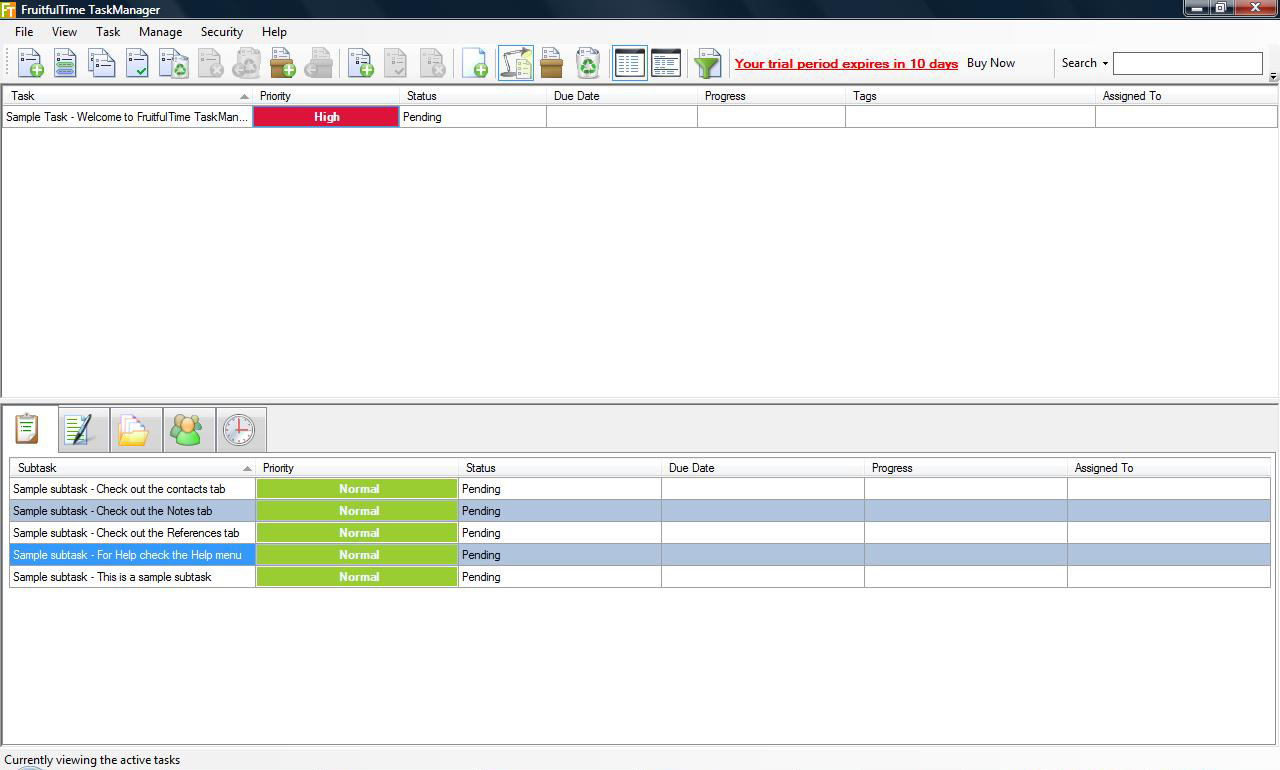
The developers of FruitfulTime Task Manager have put much thought and time into their latest version of the Task Manager, making it easier to use, more useful and less complex, in the very best sense of the word. Fruitfultime Task Manager 2 has been updated to improve several areas of the program.
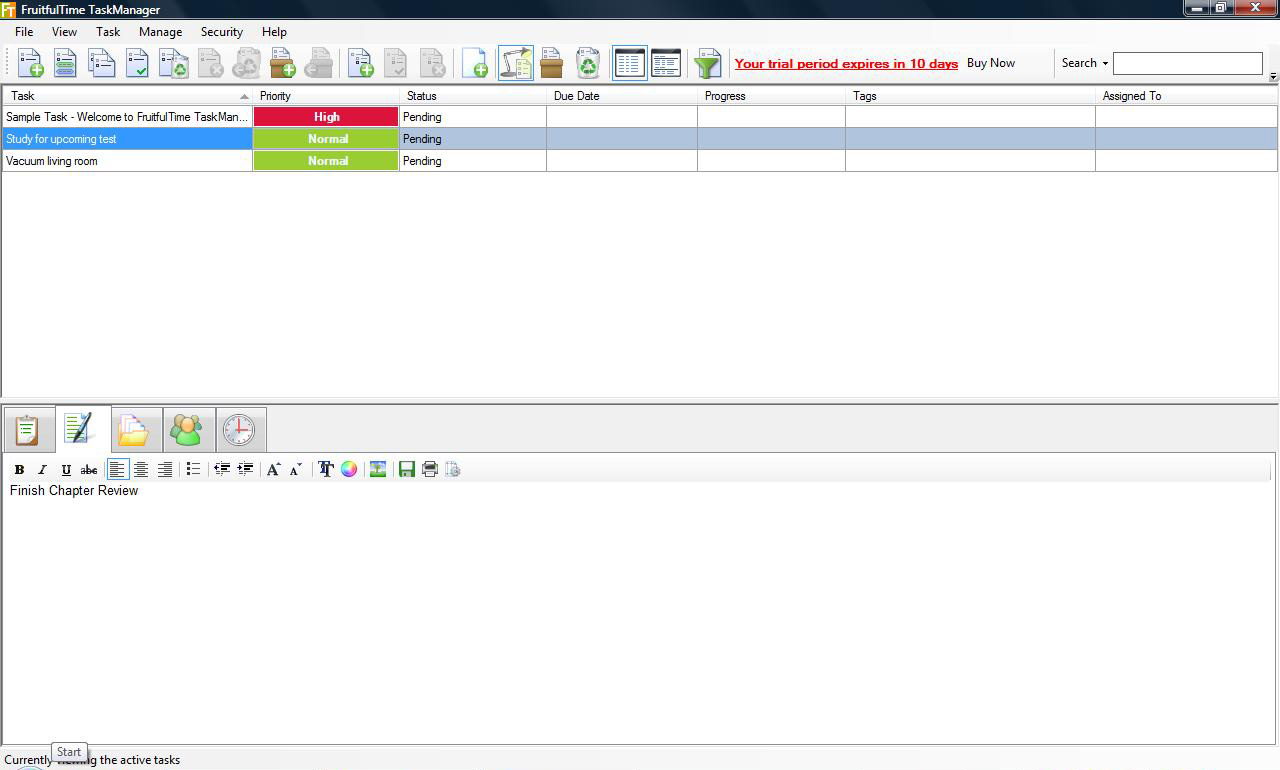
The first of the newly revamped features is an always-visible search-as-you-type box. This feature makes the search process more efficient than ever before. This feature works much like the Search feature on Windows Vista, which I have found to be extremely helpful.
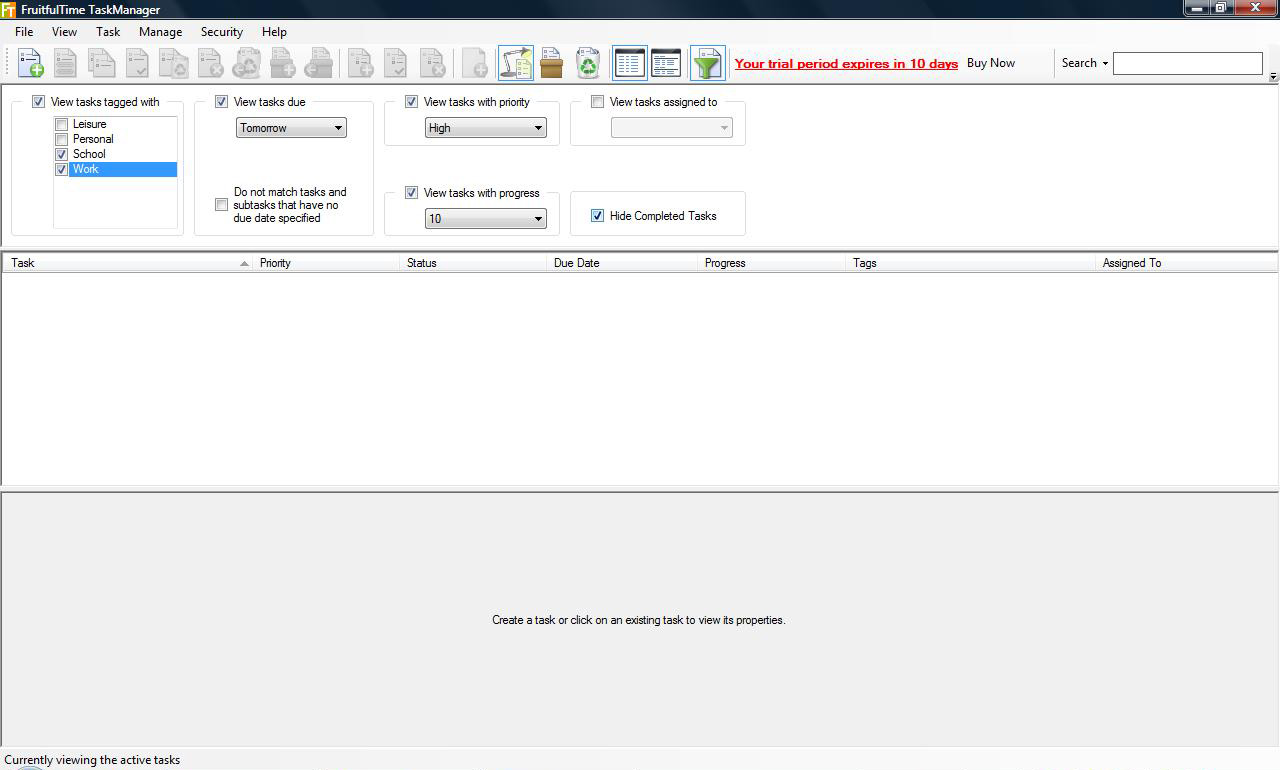
The second feature that the creators of Fruitfultime have worked on is the way tasks are organized. Now users of Fruitfultime Task Manager 2 can organize and prioritize tasks more easily and efficiently than ever before. For example, now users can filter tasks with options such as priority, status, progress and subtask filtration choices.
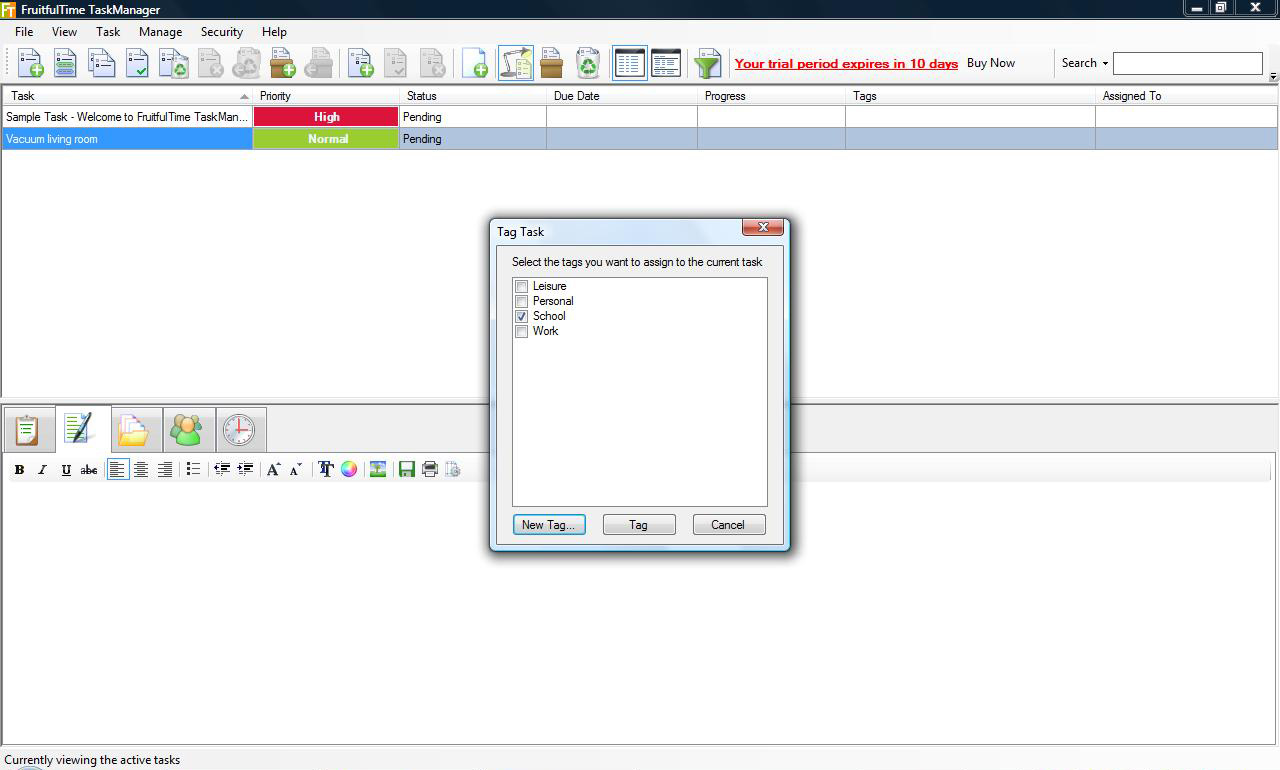
A third and well-thought-out feature of this newly updated program is the ability of the user to organize tasks with tags without any hassle. This version of the program allows a user to tag tasks in various different ways. A user may utilize right-click context menus and shortcuts to organize his or her tasks in order to put that particular task in a useful context.
With this software comes another useful tool called a “reminder.” These reminders can be set to alert a user at intervals such as, 12 hours before the event, 1 hour before, 30 minutes before, etc. Contact details are also archived, stored and managed in this one place, which makes it easy to look them up and organize them into useful groups.
As a whole, this program has been much improved in that it is more efficient and user-friendly than ever before. The new features that allow for the prioritization and organization of tasks make Fruitfultime Task Manager a wonderful tool for anyone that needs a hand in organizing his or her life.
Giveaway!
We are giving away a license for Fruitfultime Task Manager. To enter, simply add a comment telling how you or your coworkers keep track of your tasks and todo lists currently. The contest runs for a week.
Update: We have a winner! Jen Alford is now the owner of a copy of FruitfulTime 2. She was chosen at random for the commenters on this post.
Currently use Outlook Tasks and hate it!
We use outlook’s task list and calendar.
I am a big fan of the GTD integration in GMail with Remember the Milk. Does this tool leverage any other system to augment its functionality?
I currently use the GTD system in conjunction with one of those hipster PDA things (a stack of index cards clipped together). It’s the best set-up I’ve tried so far, but it isn’t perfect.
I use a tickler file for regular tasks like back exercises, washing up etc. I usually go through the tickler file in the morning and write down those sorts of tasks on a fresh green index card. Then I scan my action lists for other appropriate tasks, and write those down. Then I work through the list, sometimes rolling a die to decide which task to do next. When I complete the list, or when I go numb to it and find myself no longer able to do the tasks I’ve selected, I start again with a new card.
Currently using Outlook with Google Calendar
I mostly use a lined sheet of paper and cross off the completed action items. Longer term tasks are entered in Outlook tasks.
For work-related tasks, I send myself e-mails in Outlook (GTD for Gmail style) and flag them for follow-up. That way I don’t have to leave the e-mail window to view my tasks — I just click on the follow-up search folder.
I can treat e-mails I receive from other people as tasks that way as well, since much of the information I need to complete a task is usually in the flagged e-mail.
I currently have a pretty sweet setup with my outlook.
It took a bit of configuring but I love it. Of course… now that my DH just got me an Apple… and outlook isn’t on Apple…
I need to figure out something else.
So far, it has been google calendar and remember the milk.
My coworkers and I use a hodge-podge of tools. I have a Treo which is where my most important items go. The rest of stuff gets written in a notebook as I go along. In my office there is some use of Outlook for calendar items, not so much for tasks.
Everybody pretty much uses their own system for remembering what to do. The most organized is my boss who has a book that he writes down all tasks he receives and assigns with due dates and who is responsible.
I use Outlook task and find it too time consuming.
I use outlook and Jello-dashboard for my tasks management. Its combination of context/project categorization can’t be beat.
Presently I use Outlook (loosely configured on the GTD model) for my task management. It kind of works but it’s hard to keep track of projects and other stuff that takes more than a day to complete.
I use http://www.Gubb.net — a free on-line service — and an add-on to Firefox called Perma-Tab so that anytime I start my browser my to-do list(s) pop-up automatically.
Gubb lists allow you to replicate paper lists as closely as anything I have seen, while also allowing you to share, collaborate, print, prioritize, set up due dates & reminders, assign tasks, add unlimited notes, etc.
Currently use a A4 Calendar. Tasks that don’t finish get moved to the next day. not ideal, but if new tasks pop-up you can easily add them.
We have Lotus Notes 6 at work and the todo list is horrible and we do not have access to gmail (work in the finance world)
I am currently using recycled time cards. I have tried all sorts of methods and still have not found one that really works for me.
i simply use a moleskine..
I used to use Outlook Tasks, but I finally found something that made me switch…I now use Tudumo for all my task management — http://www.tudumo.com
We’ve used Outlook tasks and calendars… right now, we’re trying an online tool, http://www.projectoffice.net
Pen and Paper. We have Lotus Notes which is not very useful.
We currently use MS Outlook, but we’re looking for something better!
I have been using TodoList, which is a great (and free) app and does what I need it to do. But I’d like to check out other options too.
I know there are lots of web-based apps out there, but I’m reluctant to use them because they feel slightly slower (maybe just my impression) than stand-alone ones.
@Sanghee – You might look at http://www.tadalist.com/. 37Signal’s is known for keeping their apps pretty responsive using AJAX and other tricks. It might be worth checking out just to see what is possible with a web application.
Currently trying ToDoList – tried RTM but it seems like overkill. Would love for google to jump in with something that integrates with gmail and gcalendar
I use google’s calendar and outlook syncing for the most part. Most of my to do lists are on paper though.
Keep track? Ha!
What I manage to do is done using Outlook tasks, updating with ‘next action’ as each is accomplished.
I currently have a crazy mixed up system which could be called ‘Oh-my-god-what’s-my-next-action?-did-i-my-binder-at-home-again!
I’ve been keeping them in a small binder, but just bought a neo and iPhone and haven’t figured out the best way to do it now… electronically. achh! doh!
So the past 2 weeks have been crazy cause I’m all mixed up. :-(
– Hailey
I use the GTD add-in for Outlook. However, I still feel I am looking in too many places.
TFS to manage bugs and todo items.
We currently use Excel to maintain to do lists…almost as simple as pen and paper but you can filter by status, due date, owner, priority, etc. using Advanced Filter. Conditional formating (only 3 in Excel 2003, though) is used to highlight upcoming due items or ones that are late.
I use the good ole pen and paper, crossing things off as I go along.
I’ve always wanted to try a software program, but thought it might take more time to keep it updated than it would take for me to write them down. I would love to get it all online, though, and prove myself wrong!
I use 3×5 index cards. It’s not really a Hipster PDA but it does the trick. However I need to keep track of info for larger projects. 3×5’s don’t quite work for long-term management.
We’ve managed a lot of projects, and we used a lot of tools, i can tell you this, task management will satisfy your needs only for awhile, with the team/people growing and getting more experience you need a fullyy features project management tool, and there aren’t that many tools to choose from when you know what you want, we couldn’t find one, that is why we made http://www.comindwork.com
Three years later. We use Dooster.
We use Dooster as well. Fruitful Time looks good but we never came across it when we were choosing Dooster.