I remember when I first started looking at computer catalogs back in the late 80s. There was a 540MB hard drive for sale that I found fascinating. It seemed like a limitless amount of storage and I remember dreaming about what type of huge business you could run with that amount of storage space. Of course now that is even less data that can fit on a single CD rom and many programs come on multiple DVDs now days.
No matter how big of hard drive you have, you’ll eventually be able to fill it. There are two ways to clean out unnecessary information. One is to go through, folder by folder, and clean out what you don’t need. This is the “correct” way to do things. However, in the digital world, not all files are created equal. You can easily spend an hour deleting hundreds of files, only to discover that you’ve freed 50 MB of space off a 200 GB hard drive.
The most productive way to clean your hard drive is to figure out which files are taking up the most space and start there. Unfortunately, most operating systems don’t make it very easy to figure out where your big files are. If you use something that is based on Unix (like OS X), you can use the “du” command to figure it out, but that isn’t very user friendly if you want to deal with things through a GUI.
There are two solutions I’ve found. One is for Windows and the other is for OS X. Both have free and paid versions.
Treesize Free
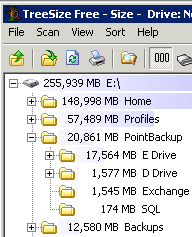 This is the windows program. The free version gives you an easy way to see the size of your folders and drill down to see the size of subfolders and files. One thing I really liked about it is the way it shows a graph of each file or directory in the tree view. I was also impressed with how fast it worked. Just the other day, one of my client’s hard drives was filling up to the point that they could no longer back things up. I was able to measure about 200 GBs of files in just a few minutes and point them to 3 users who were using over 50% of the drive space.
The paid version gives you a bunch of extra features. It lets you export information in XML, create graphs, and archive old files. It will also let you search for files that are duplicates of each other. It includes a shell extension that will give you access directly from Windows.
You can download Treesize from Jam Software here.
OmniDiskSweeper
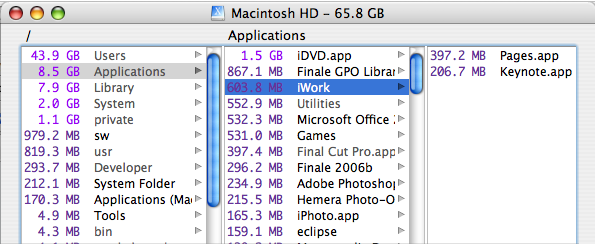
This is the program that I use for OS X. It works basically the same way, but it doesn’t seem to be quite as fast as Treesize. There used a free version and a pay version that would let you delete folders and files directly from the app. However, Omnigroup now makes the paid application available for free.
You can download OmniDiskSweeper from Omni Group here.
For Windows, there is another excellent option named “Sequoia View”, available at
http://w3.win.tue.nl/nl/onderzoek/onderzoek_informatica/visualization/sequoiaview/ (screenshots on display there, too).
Sequoia View scans your HDD and presents all files and directories in a very special view where you can immediately spot what takes up the most space, without having to drill down in a tree-like structure.
Under Linux/KDE, Konqueror supports a similar view labeled “File Size View”.
Great tip (like many before). I’ve been using TreeSize for quite some time myself and it is one of my most essential tools, e.g. for finding out where to look when your profile suddenly grows like hell.
In addition I would recommend Duplic8, which is a neat & cheap utility for tracing duplicate files, especially helpful when you are using (several) external hard-drives or various folders for projects – and have this tendency to not clean up immediately.
[ http://www.kewlit.com/duplic8 ]
Martin
Nice article. Thanks.
I would also like to point you at JDiskReport from jGoodies (http://www.jgoodies.com/freeware/jdiskreport/). the software was created by Karsten Lentzsch and is great. I have been using it for more than 2 years now and I love it. And it is Free!
It is written in Java and you will need a JRE to run it.
I have found another solution.
ViewFolderSize Pro
http://www.moveax.com/
You can see folder sizes directly in Windows Explorer as number or as bar (percent of current folder size).
Also you can setup folder size alerts. If folder size reaches maximum or minimum value then ViewFolderSize Pro will execute selected actions (notify you, launch cd/dvd burner etc).
And at last, it working faster than software above. ;)
It’s a good program. We usually don’t recognize the space until it’s full. We may have the idea to organize it but don’t have the time. With this add on, it’s easy to allocate files.
I don’t really have a big problem with disk space is it could sometimes be time consuming to find out that there’s not enough space after waiting for the copied file to finish. Thanks for sharing this.
When I was Windows-based, the previously mentioned Sequoia View was a disk maintenance must-have. On the Mac, I’ve found that the open source Disk Inventory X is also indispensable.
I’ve used SpaceMonger, and have found it very useful. The free version is 1.4, available here: http://www.werkema.com/software/spacemonger.html, there’s a link to the newer version (2.x), which costs about $20.
Thanks everyone for all the suggestions. I’ll checkout some of these other options that I haven’t heard of before.
The ability to delete without leaving the tools seems make things a lot easier. OmniDiskSweeper only does this in the registered version.
Most of these tools take awhile to run. Has anyone found one that is nearly instant? I don’t know if that is even possible because the filesystem may not keep the data stored in the directory pointers, so it might have to be recalculated by reading the size on every single file.
OmniDiskSweeper takes about 10 minutes to index my 80 Gb hard drive.
On UNIX, like Mac OS X, you can find large files this way:
$ du -d 1 -h | grep ^…G
This will find any immediate subdirectory that is GB in size. Drill down and repeat the command until you find a directory you can trim. You can “grep ^…M” to find subdirectories only MB in size. “grep ^\d\d\dM” will find subdirectories hundreds of MB in size.
If you do this frequently, considering aliasing the command
[in ~/.proflle]
alias find_big_folders=”du -d 1 -h | grep ^…G
$ find_big_folders
…
Works great.
try windirstat.exe for windows. visual representation, very easy to spot large files etc. click on and identify what is what. ability to move, delete, inspect everything. my favorite to see what’s on my HDD
Hi Mark, thanks for the suggestions. It’s really hard to clean out your hard drive.
I use GrandPerspective for the Mac. It shows you visually which parts of your hard drive consume huge amounts of space.
Interesting. I like how it lets you see the file size visually.