If you like this article you might also enjoy our post about how to use your signature to sign documents in Acrobat. We also have a number of other articles about going paperless and one on Digital Signatures and Encryption that might be useful.
If you want to create a scanned electronic version of your signature, there are several ways to do it. The “right” way would be to send your signature to a company that will create a truetype font of your entire signature so you can print it at any size and still have the beautiful vector drawn lines.
The easy way to do it is to scan in your signature and remove the background. If you make it large enough and scan at a high enough resolution, you don’t have to worry about it looking bad when it gets printed.
I’m going to walk you through the “easy” way. I’ll be using Photoshop simply because you probably know someone who has it and wouldn’t mind doing this for you. I’m sure you can do it with other programs as well.
Note: When people talk about “digital signatures” they usually aren’t referring to a scanned version of your handwriting. Digital electronic signatures are an electronic way to prove that someone signed something even if the end product is being transmitted through a network where malicious people may try to tamper with it.
1. Sign a piece of paper
This is harder than it sounds because you’ll be very critical of the way it looks. I suggest signing with large letters. When you shrink it down, it will look better. I used a blue gel pen and got decent results. Sign a piece of paper several times and then scan it in. This will give you some options to choose the best looking image.
2. Scan the paper
You probably want to use a high resolution for best results. I wouldn’t go below 600 dpi.
3. Crop down to the best signature
You also may need to straighten the image at this point so it is level and will line up with horizontal lines on paper.
4. Use the magic wand to select the area around the signature
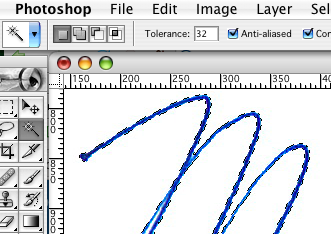
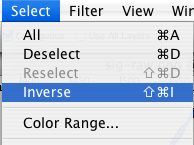
5. Invert the selection and copy
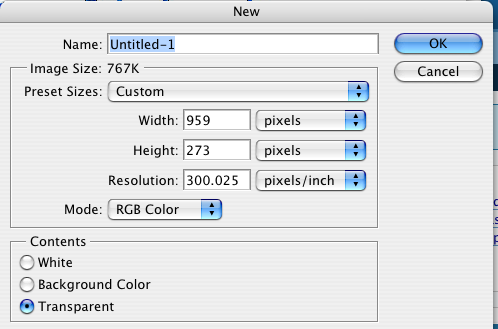
6. Paste the signature into a new document with a transparent background
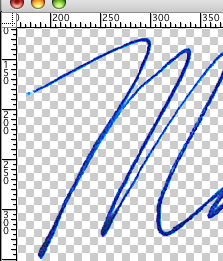
7. Use the magic wand to remove any white still left inside letters.
8. Save the image in a format that supports transparent backgrounds.
I’d suggest using PNG. It can be imported into Acrobat, supports transparency, and doesn’t have problems with “artifacts” like some other formats. You don’t want to use JPEG because of the artifact problem.
So what can you use your scanned digital signature for? Here are some suggestions:
- Email Signature – I’m not a big fan of using an image in an email signature, but I know a lot of people think it gives emails a nice personal touch. If you do decided to use this in your email as an electronic signature, be sure to send test messages to several email programs to make sure that it looks the way you expect.
- Digital Signature Representation – Acrobat can support digital electronic signatures using public key infrastructure. They also allow you to attach a digital representation of your signature–so there is an actual signature on the document even though the real legal weight is being handled by a bunch of numbers behind the scene. This is particularly useful if you are sending a document with a digital signature to someone who may not be particularly technology savvy. They may not understand how the digital signature works, but they will have a signature that they recognize when they print the document out.
- Signing Faxes – This is one of my main uses for a scanned signature. I can receive a fax, sign it and fax it back without ever printing the document out.
Now I remember how I did it…scan signature, open with MS Paint, resize then save as…copy and paste into the relevant document. Simples!
How you filled signature on pdf form if it’s basically picture format? Please, I can do it on doc’s but haven’t able convert to pdf.
@Henry – See my post on How to Sign with Acrobat. That method works with Acrobat Professional and is what I use. There may be others as well.
You need more than the free Acrobat reader. Adobe Acrobat Professional will let you insert your signature file like you do in docs.
Perfect for those who are learning the aspects of good computer management. Your signature is now recognizable as a legitimate legal document in most instances on line. This means you do not have to mail hard copy and your online documents are recognized and permitted for your business needs.
You can also use this free web photoeditor for free if you don’t have photoshop.
http://www.pixlr.com/editor/
I just made mine. The only issue is that you can’t use it to rotate your signature. I got around this by rotating it in microsoft’s photoviewer after I worked with it on there.
Hope this helps!
Hey Kristen, I can make a signature for you! Or you can send a pic of your real signature and I can digitize it for you! https://www.fiverr.com/tianshi/create-an-artistic-signature-of-your-name?arrived_from_manage_gigs=true&display_share=true
No no no! Do not do this!
Be aware a scanned signature is NOT an electronic signature nor is it a digital signature. It is not legally binding and can easily be challenged.
Both electronic and digital signatures (yes there is a difference) both must have and demonstrate the following properties;
• Authentication –this Refers to the level of assurance that an asserted identity is accurate, that is the identity being presented belongs to the individual presenting it. Some level of identity proofing is required for authentication.
• Authorization – does the asserted individual have the authority to take the action? A document signed by the wrong person has no validity this is also true of electronic signing.
• Control of the signature – The signors must have sole control of their signature, no other must be able to use it or have access to it, and this prevents forgery.
• Intent to sign – the signors intent must be evident in that the action to sign was a willful act, and was intended.
• Binding of the signature and time stamp of signature to the object being signed, integrity – the object (document, email or whatever) when signed must be bound to the signature and the time stamp just as in a hand signed document. This bind must provide some level of assurance that the signed object has not been altered since it was signed.
• Availability – the signature bound to the signed object must be able to be recalled at any point in the future for the useful life span of the document or as required by law.
• Non-repudiation – this is the concept of ensuring that a party in a dispute cannot refute the signatures validity.
Now these are relatively broad descriptions but the do apply. Also be aware that you can not just use an electronic signature as it use is reserved and must be accepted by all parties concerned.
I am tracking the posts via e-mail so if you want to know more just post here and I will respond.
If someone faxes me a document, it gets converted to a PDF, sent to my email box and then I can print it out. I can sign that document, scan it back to a PDF and then send it back to them using a service on my computer. The document and my signature gets converted a digitized several times in that process. How is the end result that they receive any different if I print it out, sign it and shred it than if I just add my signature to it in an electronic way?
If a company accepts a faxed or scanned copy of a signed document, what I’m suggesting isn’t really any different. Now if they wan’t an original signed copy, this won’t work and as far as I know an original signed document is still required for doing something like buying a house.
I have seen the terms electronic signature and digital signature used interchangeably. If one means a photo of a signature and the other means something that is signed with your digital certificate, I haven’t found any consistency in the way they are being used to know which one is which. I have another post about how digital signatures (things signed with a digital certificate) work.
A document that has been printed out signed then scanned is something I have done before. however, I could as the receiver of the document say, “How do I know YOU signed this document?”. This also happens on regular documents, “How do I know YOU signed this document?” this is where the concept of a witness or a notary comes in. Generally documents that do not require a high level of authentication do not require a witness or notary. Electronic signatures have.
No a digital copy of you signature that has been added to you document is a bit more risky since it can be easily added to any document that does not require a witness or notary. The risk is on your part. This for does not exhibit any of the positive traits found in a digital signature or a full binding signature.
I see the terms used interchangeably too. Which is wrong by the way, term electronic signature is very wide and includes as a subset digital signatures; different type of electronic signatures yield different levels of trust and non-repudiation.
I type this rather quickly I hope it makes sense, there is more I really should add as this deceivingly complex. – Mike
How is it any more risky to add an image of your signature to document than to print it out and sign it? I can copy your signature off a physical document just as easily (and sometimes more easily) than off a file. Also how is it any more difficult to forge copy a fake signature than to copy a fake notary seal?
Most of the time we sign things that are to both parties benefit. So the fact our signature is on a piece of paper somewhere isn’t primary reason both parties perform their side of the agreement. There are very few contracts where someone is going to claim that they didn’t sign it. This is true for physical and digital (in the picture sense) signatures.
Before I start I should say that when we sign stuff we typically do it to show evidence that we understand, accept and agree to something our signature hold us to that a signature is there to bind one or more parties to an agreement and is not done only because there is mutual benefit, otherwise why would we need the signature?
Other items you mentioned are addresses in the below text.
Scanned signatures are Signatures that are scanned (electronically copied) and pasted into documents, they are also some time called digitized signatures, not to be confused with digital signatures which are a far more sure way of signing. Often time people make assume they are equivalent under the law and that they are or can be as binding this is simply not true. Scanned signatures will not hold up under legal attack as a signature. The following paragraphs detail both Scanned and Wet signatures.
Scanned Signature
Unfortunately a scanned signature holds the same flaws as does a wet signature and none of the advantages, no assurance; however the problem is bigger in this case.
No assurance/authentication of the signer, anyone can paste the signature on to a file and claim you signed it. Once you send a file out with your pasted signature it is easy enough for the recipient to cut and paste the signature one a new document or other documents. These problems you don’t have with wet signature.
• With a hand written ink signature (commonly called a wet signature) you have no assurance of who the signer is, unless you a) know the signer or b) the signer has been identity proofed by a witness or notary.
• No binding what this means is there is no way to know if a signer signed a specific document or know where that pasted signature came from, sure it looks like it’s the right guy but how do you know.
• No control there is no way for you to know if the authorized signer is the only one with access to the scanned signature, and actually once you have set out even one document with a pasted signature you are no longer in sole control of your signature.
• You can’t have a document notarized when using a scanned signature.
• You also set a president of behavior that demonstrates that you commonly use this method of signing (along with its deficiencies) which can be used to legally attack the validity of you signature.
• Scanned signatures do to occur in person which lends to the authentication, validation, intent, sole control and binding issues that are present with this method.
With these critical elements missing the signature can be questioned very easily and I assure you that it will be questioned should a dispute arise.
Wet Signatures
Wet Signature exhibits some of the same deficiencies seen in scanned signatures, except;
• They can be notarized, thus eliminating the issues of identity and assurance since ID us required and is visually verified by the notary. The notary can also acts as a witness and adds his/her signature and notary seal thus further solidifying the binding of the individuals signature to a specific document.
• When a document is not notarized an individual’s signature is still unique enough, even though the signature may change slightly from time to time, to be considered uniquely yours and to some degree demonstrates control and when placed on a non-notarized document.
• You are setting a precedent that you have sole control of your signature at all times.
• Wet signatures still enjoy, in all cases, some level of legal support when used in the execution of documents.
• Wet signatures often occur in the presents of other people who may or may not be witnesses. When this method is used in private it can suffer many of the same flaws that a scanned signature.
The most important single advantage of a wet signature; If a notary has attached a signature and his/her seal the seal is typically a raised seal and is quite difficult to duplicate. It is east to validate by simply contacting the notary, who is an uninterested third party and has no interest in the documents or its outcome. Most document of an important or high value nature require a witness or a notary for this reason it “corrects the problems of a wet signature” and provides authentication, validation, intent, and binds the signature to the document legally. This is an advantage of a wet signature and this is not possible with a scanned signature.
Problems
Both scanned and wet signatures (to a lesser degree when notarized) are subject to attack. These attacks are often difficult or impossible to detect.
Scanned Signature Attack
These attacks usually target the fact that this signature is very transportable and is not under the sole control of the signer. The act of simply using the cut and paste feature on all modern operating systems allows the easy reuse of the signature by anyone without detection.
Wet Signature Attack
A wet signature is a little more difficult, the attack requires access to the signature for study and some level of skill/ability to learn the signature before its use. However forgery has a long history of success as an attack vector.
Then doesn’t forgery make a wet signature somewhat worse. I mean at least a scanned signature will be more likely bring to mind the thought of a verification process where as the wet signature will be more likely not. If I receive a binding document with a scanned signature a will verify. If I receive a document with a wet signature well my case in point. And doesn’t the scanned signature add an audit element if used with email or faxing. Spoofing of these can be detected.
Actually no, a wet forgery can be detected, if you know what to look for. A scanned signature can be placed in any document at any time, there is no way to tell who pasted the signature into a document. Thats the problems with a pasted signature, how do you bin and verify that the owner of the scanned signature completed the action on the given document? Email, faxing scanning are transport mechanisms and do not profiled tracking, binding or authentication for documents.
If I send you a document right now with a scanned signature pasted into it how would you know that I (not someone else) pasted that signature into that specific document?
a hospital requires its docs to submit electronic medical charts.
which is more reliable: digital singature or electronic signature
how can a signature be placed at the logical end of the chart instead of on a blank page following the logical end of the medical chart.
may each page of the medical chart be initialed to assure the chart has not been changed subsequent to submitting the chart to the hospital.
thank you Lisa
This article deals with getting an image of your signature on a document. It sounds like you are looking for a way to prove that the entire document hasn’t been altered since it was signed. For that you are going to want to look at a cryptographic digital signature.
A Digital signature is what you are after, specifically a cryptographic digital signature. Once a document, sound, image or other electronic record is signed in this manner it can not be changed with out detection, actually in most implmentations change is not possible. Anyway you would sign he document as a whole, no need to sign each page.
You are so right. All I would have to do is use my browser add on called pixlr grabber, right click on your signature, stretch the outline around it, save to….and it’s mine. Very simple. I wouldn’t feel safe leaving much with anyone who accepted this as my true signature.
I agree with everything you said, except two things.
#1.
“No no no! Do not do this!”
Why not? It is completely safe with certain things. It really depends on what you are adding your scanned signature to. For example, I frequently sign away my rights to things. Like copyright forms when publishing articles in journals. The journal has no reason to ever challenge my signature, since they want my copyrights. I guess I could claim later that I didn’t really sign the form and I’d have to support that statement. Of course, if the journal was worried about that, they would require an original signature.
#2.
“It is not legally binding and can easily be challenged.”
The law is complicated. In many situations, contracts with these signatures would be completely valid. Although challenging such a contract would be possible, I doubt it would be easy. In most cases, there is a lot of evidence of intent that would go into determining whether or not someone did in fact accept a contract. I would sign and keep originals of any important documents, but for minor everyday things, using a scanned signature is a reasonable tradeoff between convenience and security.
Steve – Good points. I think in many states a legal dispute over a contract will come down to whether or not there was an agreement. Your signature on a piece of paper doesn’t necessarily mean you signed that piece of paper. Forging has been around for years.
I have tried with all your instructions to create my signature for e signing without any luck – granted I am not exactly a computer guru however, I followed your instructions to the letter – any thoughts? thanks.
What step is causing you problems?
Sometimes it is not just about can I do it, it’s about should and I do it and/or how. Without the proper software and/or governance around the cutting and pasting of an actual signature this practice is dangerous. Nowadays, there are many software products designed to control, monitor and authenticate the application of applying the facsimile of a person’s signature. Many are not expensive either.
If I cut and paste an image of someone’s signature to an e-document it’s the same as a signing the hardcopy document with their name, yes? It is if you consider it, and use it like a real digital or e-signature is applied.
If it is done without the proper protocols and procedures it could get a business person in hot water in a audit. If someone else does it for you it could be construed as forging a person’s signature; the same as it would be if you forged another person’s signature on a paper document by hand. Being in the cyber world does not change that, a fake is a fake; it only makes it easier to do, and on a larger scale.
I would recommend that you at the least, have a clear policy established and procedures documented as to how and when you do this or if and when someone else has been granted authority to do this for you. Often times in the cyber world it is the process and protocols around the function that provide the credibility and will give you the preverbal, legal leg to stand on.
Nice post Mark. I have to try it out at home. I have been looking for something like this for a while.
Cheers.
There is a lot of good discussion and points here. But what I haven’t found is that
I also understand a fax is now considered a legal document, just like originals.
If that is correct, then how it is done / proven that the fax was actually signed
as intended, and there is no possibility of it being fake ?
Thanks so much for the great, easy-to-use advice. It worked perfectly the first time. I’d never used the “magic wand” feature on Photoshop before. Fantastic!
Hi Mark,
I used you instructions on http://www.productivity501.com to create a digital copy of my signature, which had been scanned and edited using Paint Brush.
My process is working fine, where I can insert this png file into a word document and then pass onto another colleague for thme to add their signature file and then email, without having to print, sign, scan and then email.
Problem is that my colleague is able to copy my signature image during the process they are adding their signature file ?
How can I stop this from occurring, as it does allow this person to send out information with my signature.
Great instructions, would really appreciate any advice to get around my problem.
Regards,
Mohin.
You might look at using Acrobat or some other service to actually sign the document with a digital signature. I don’t think there is really a way around your issue. Of course they could just scan in your signature from a physical document and do the same thing.
worked perfectly, thanks!
Actually there is a way in MS word to protect a picture added signature. This is done by creating a “section” using a “before” and “after” continuous break then restricting editing in this section. If your signature is at the end of the document then you would only need to add the before continuous break or in Mohin’s case where others need to sign, you would need to create the section and protect it. The others could do the same if they wanted to protect their signature after adding it. The process has a few steps and the creator can edit the section. Only when others access the doc does the section protection get enforced.
Here is the documented procedure: http://projectwoman.com/2009/03/protect-part-of-a-word-document.html.
Are you sure that keeps them from being able to copy the signature out to put it somewhere else? At the very least they could screenshot it.
Yes, This procedure will prevent anyone from performing any editing function on the signature within the document.
But they can still take a screen shot and crop the signature using Photoshop or Paint.
I don’t think that adding an signature image to a document is considered a legitimate signature in the eyes of the court. How do you prove non-repudiation when anyone can copy your signature image and paste it into documents.
I’ve managed to paste this onto a transparent new document, but how do I “remove the rest of the white space” using the magic wand?
Thanks Mark, I will be trying it out. I’ll be using Gimp though.
I’ve read through all of these posts and it has been interesting, with decent remarks on both sides for the most part.
The point of this exercise in the first place is to facilitate the pushing of papers in my mind. I often find myself out and about in the world with someone waiting for my signature. Without a microscope and the need for one, I seriously doubt it would be easy for someone to figure out that I was superimposing what is effectively a bitmap of my signature, over an even lower resolution in my cases pdf.
Most often I’m in receipt of something by email pdf that my assistant received by fax or efax that needs my signature. Option 1) wait until I can print, then wet ink sign, then scan to pdf and then email. Silly, considering that with Option 2) from my smartphone app I can just open the attachment in my signature app (I happen to use SignEasy on iOS, but many others would work) and import my .png version of my signature.
The point I’m making is that my version of this tutorial works PERFECTLY for my purposes and nobody would ever question the validity of the signature I’m sending back. I have no intent to defraud. My intent is expediency and I don’t think any FBI forensics labs will be peeling apart the encoding layers of my return PDF’s for something I would readily admit that I “signed”. I’m not even certain that a PDF has a history of layers. I’m pretty certain that an encapsulated postscript file (PDF) is just a record of dots and where those dots are supposed to be on the page. I could be wrong.
Now, I have one caveat……I’m only using this for a single signature. I personally would never use this to sign multiple times to the same person as my signature would be dot-for-dot identical. I am literally expecting that whoever receives my document believes that I simply wet ink signed it.
I routinely change my scanned signature so that it’s never exactly the same on my signing app. Your mileage may vary. It’s easy to accomplish this for me.
Set aside all of the legal mumbo jumbo for a moment for those of us functioning in the real world. 1) people will appreciate your efficiency with returning a signature quickly. 2) if anyone ever asks just tell them what you did…no intent to defraud.
This is just my take on it as a person who actually on occasion will find the need to function completely in electrons. Nobody is the “wiser”.
I use Popfax online faxing as I need to add my digital signature quite often when sending a document, it is easy, safe, quick and very convenient. Popfax also provides the necessary tools for signing the faxes digitally.
my ex husband has scanned my signature into a totally false childcare agreement. He then emailed me a copy as I had not received a paper copy of original signed arrangement,.
I can actually see the outline of edge of paper where it has been cut and pasted.
where do I stand legally as made up agreement!
Talk to a lawyer. There are a number of things that would probably need to be true in order for the document to be binding–not the least of which is you having actually signed the document.
Thanks for sharing; I use this scanned signature file as background to my digital signature whenever I sign so that the signed document auto-deletes my signature the moment it detects an edit.
My questions : Considering that I use MS Word that considers a second digital signature as an edit attempt and thereby removes the first signature, could you please suggest any idea or tip to
1) prepare a word doc with 2 digital signature blocks that maintains the first signature while allowing the second signature ?
2) set up a word document’s restrictions in such a way that it only allows digital signatures on it and any else would be considered as edit attempt?
I don’t typically use Word for signatures, but there is a way to collect multiple signatures as part of a workflow in Sharepoint. You might checkout that link and see if it helps.
Hi Mark,
Okay, I am definitely a computer novice, but…
I’m curious, to prevent theft of the scanned signature could you use it as a watermark?
I have tried copying photo watermarks to no avail and it seems like it should be possible.
Matching document author and watermark signature.
I am also wondering if registering the signature with a free service like MyFreeCopyright would offer a smiggin more protection?
Are you worried that someone will copy your signature and trademark it?
These are the simple and the best way to create the signature that will look fine digitally!
hi! I have a signature on a card, but can it be scanned and put on a football shirt I have? if so how? thanks!!! carl.
Thank you. It would be nice to know how to insert the same signature into a pdf, if that is even possible.
If you use Preview on a Mac, got to Tools > Annotate > Signatures > Manage Signatures. You can actually hold up a piece of paper to the screen to create a signature. If you are using Acrobat, I think it is Edit > Preferences > Security > Configure Signature Appearance. That might not be exactly right, but it should point you in the right direction.