When we revamped the contest last week there were still 1320 chances up for grabs. With all the recent entries, there are now only 857 left. As a quick reminder, here are the four ways you can enter: Full Review - 10 chances to win Link to Site & Contest - 5 chances to win Subscribe to RSS - 1 chance win Subscribe to Email - 1 chance to win So the easiest way to get two chances of winning is to subscribe to this blog via email and in your RSS reader. Checkout the full details of the contest in this previous post. … [Read more...] about Contest Update
Archives for June 2007
Ideal Backup Solution–OS X Version
Yesterday we talked about the ideal backup solution. Today we are going to look at how to implement this solution on OS X. The disk utility with OS X allows you to create a live copy of your hard drive that can be started up and run just like it is your computer. You can even create the backup while using your computer. As far as I know, this process will only work when you are using a firewire hard drive. I haven't had any luck booting OS X to a USB drive, so while you may be able to make a backup with a USB connection, I don't think you can make the backup bootable. The Disk Utility application stored in your Application > Utilities folder. It is simple to use, but you have to … [Read more...] about Ideal Backup Solution–OS X Version
Ideal Backup Solution

When most people approach their computer backup, they focus on how to create the backup and don't really think about how to use it if it is ever required. I backup in several different ways, but in this post I want to outline the backup strategy that I am most likely to make use of in case my laptop is stolen, submerged, lost, dropped, kicked, eaten, or incinerated. I'm just going to outline the theory behind this backup strategy regardless of the OS. In a later post, I'll show you how to actually implement it on OS X. The Goal If we approach backup with the end in mind, it makes us take a different approach than. So lets define the desired outcome. In our case the desired outcome is to … [Read more...] about Ideal Backup Solution
Tuesday’s Tip: Organized for Happiness
I have two tool boxes. On is a large box with a bunch of tools thrown in it. It has a wide selection, but they are all just stored in the main compartment. My other toolbox is much smaller. It has an individual place to hold each tool. For some reason I hate using the large toolbox and love using the smaller one. I think this is a function of organization. Since each tool has an exact location, it just feels better to use the organized toolkit. Also I find that with the smaller toolbox, I am much more likely to put everything back, because it has a specific place for each tool. With the larger box, I'll leave a tool sitting out or in … [Read more...] about Tuesday’s Tip: Organized for Happiness
iPod Contest Update
In January we gave away an iPod Shuffle to one of our email subscribers. In February we started another iPod giveaway contest where you could win an iPod Shuffle by reviewing this site. Once we got 150 reviews we were going to give away the Shuffle. So far we have 18 reviews and they have been very valuable in the redesign of this site, but I'd like to speed things up a bit. We are going to expand the ways you can enter. We are going to have 5,000 chances to win and you will be able to enter in 4 different ways: Full Review - 10 chances to win Link to Site & Contest - 5 chances to win Subscribe to RSS - 1 chance win Subscribe to Email - 1 chance to win If you have … [Read more...] about iPod Contest Update
Maximizing Benefits
John posted an article about Multiple Positives which he defines as doing activities in a way that give you multiple benefits. This got me to thinking about ways that I've been able to stack things together in order to get the most benefit. In general, I consider multitasking to be a bad habit. However, there are times where "multibenefiting" is highly profitable. The difference is that with "multibenefiting" you are concentrating on a richer outcome. With multitasking the focus is just on doing things at the same time--even when the outcome is less productive. Here are some examples: 1. Mowing the Yard with a Book I hate mowing. To make things a little more bearable, I started … [Read more...] about Maximizing Benefits
Your Turn — Three Questions

Previously I interviewed about 30 bloggers asking them to answer three questions. The responses (linked below) were very insightful. What is the single biggest way people waste time without even realizing it? What change has made the most difference in making you effective in life? If someone were to read just one post from your site, which would you recommend the read and why? However, as with any large group interview, it is easy to leave out people who have some great ideas to share. So if you would like to give your opinion on any or all of these questions, please post the answers to your blog and I'll link to them in this post. If you don't have a blog, feel free to … [Read more...] about Your Turn — Three Questions
Father’s Day and Productivity

Having been a father for a whole 3 months, I am not the most experienced person to comment on fatherhood. However, I do have something to say on how your productivity impacts one's ability to function as a father. In a recent post about wasting time I received the following comment: We mustn’t get too obsessed with efficiency, otherwise we become machines ourselves. Chill out a bit, guys! I agree that when productivity becomes an end in itself, work has very little meaning. However, when productivity enables you to live a life that is richer than what others experience, it can add value. Productivity is what lets you provide for your basic needs with less effort. The less effort it … [Read more...] about Father’s Day and Productivity
Best Posts from 2005
I've had some readers asking what I considered my best past posts, so I took some time and went through the archives for 2005 and compiled a short list of what I consider to be the best content. Some are long, some are short, but these are the posts that challenged me the most in my personal productivity. Two Types of Technology User Paradox of Powerful Tools Social Glass Ceiling The Rat Experiment Making Decisions in Advance Define and Conquer … [Read more...] about Best Posts from 2005
Interview: Best Post
This is the third and final post where we interviewed a number of experts in personal productivity, time management and organization. I wanted to thank everyone who participated and also thank Leo at ZenHabits for putting together the list of 50 Productivity Blogs back in April which gave me a great starting point for these interviews. The first question we asked had to do with identifying the biggest way people waste time without realizing it. The second gave the experts a chance to share the single change that has had the biggest results in terms of being effective. The third and final question was: If someone were to read just one post from your site, which would you recommend … [Read more...] about Interview: Best Post
Thoughts on Safari For Windows
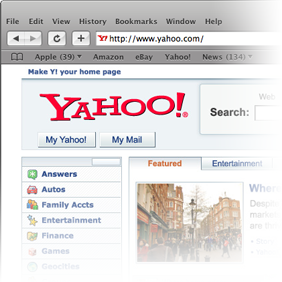
Steve Jobs did his annual keynote for Apple's developer conference earlier this week. People weren't particularly impressed as seen by the in Apple stock price right after the keynote that is continuing. The "big" announcement was Safari for Windows. This struck me as pretty odd and only made a little more sense once he went on to explain that the only way developers could put applications on the iPhone was to create web applications. My biggest problem with Safari is that it doesn't support WYSIWIG editing in Wordpress. Maybe it is the other way around--Wordpress doesn't support Safari, but from what I understand the problem has more to do with Safari than Wordpress. I've heard … [Read more...] about Thoughts on Safari For Windows
Interview: Becoming Effective
What change has made the most difference in making you effective? Mmmm...tough question. Ironically, I think having less time available for discretionary projects has made me more effective in the areas of my life that I choose to spend time in. So get married, have kids and take a job that keeps you busy all the time: it'll make you more effective! Brendon Connelly from Slacker Manager (rss) This seems counterintuitive, but I guess it makes sense. Having more stuff to do should help force you to be more efficient. … [Read more...] about Interview: Becoming Effective
Interview: Biggest Time Waster
Welcome Stumblers. If you like this post, please consider subscribing to the RSS feed. This is the first of a three part post where we asked a bunch of productivity experts three questions. Read after the jump to see their answers along with my commentary about each one. Thanks to everyone who participated. What is the single biggest way people waste time without even realizing it? … [Read more...] about Interview: Biggest Time Waster
Interviews With Productivity Experts
I have contacted a number of individuals who run blogs about time management, personal productivity, and organization. I asked them all three questions: What is the single biggest way people waste time without even realizing it? What change has made the most difference in making you effective in life? If someone were to read just one post from your site, which would you recommend they read and why? The response has been spectacular and I've thoroughly enjoyed reading all the different perspectives. One of the participants said this project was "ambitious". I didn't really understand what they meant until I started trying to organize all the information into a … [Read more...] about Interviews With Productivity Experts
10 Ways to Eliminate Distractions from FreelanceSwitch
Freelance Switch has a nice article called 10 Ways to Eliminate Distractions. Below is their list of 10 items along with my commentary. See the original post for their detailed discussion about each item. Turn of email notifications -- This goes along with the idea that humans can't really multi-task so you are better off only focusing on one thing at a time. I understand that in Switzerland some companies have policies only allowing employees to check their emails once each day to help minimize the interruptions from email. Your job may require to to check it more often, but each incoming email shouldn't jar you away from your current task. Remember, email is there to work for you … [Read more...] about 10 Ways to Eliminate Distractions from FreelanceSwitch
My Current Working Desk
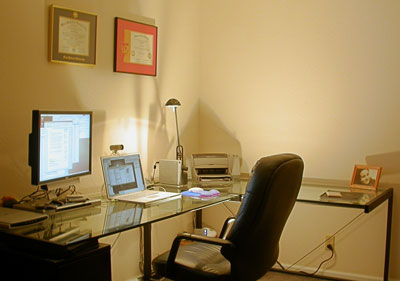
After writing the post about 12 Tips For an Organized Desk, several people were interested in seeing my setup. I've tried to map my description back to my page of tips. I'm interested in any comments or suggestions. Am I overlooking something obvious that could make things work even better? When I graduated from college in 1998 I started looking for a good desk and chair. I found these and they have been my main workstation in the US ever since. While the glass tops make these a little hard to move, it is offset by the fact that the frames come apart, so the entire thing can be packed fairly flat against the wall in a moving van. It took me a very long time to find the chair. … [Read more...] about My Current Working Desk
TIP: Create Productive Time

Everyone has a different point in their day where they are most productive. Sometimes you can create a productive block of time to work by paying attention to how your body functions and what it takes to get you to peak performance. Many of the most productive people in the world do a great deal of work before others even wake up. I am not naturally a morning person, but I've found that capturing morning hours can be very very productive. If I get up early and start working at 5, I can be three or four hours into my day before the rest of the world even starts logging on to their computers. It can be hard to be fully functional at five in the morning if you aren't geared that way … [Read more...] about TIP: Create Productive Time
Google Gears
Google Gears is a project that, if successful, may be a bigger threat to Microsoft than about any other technology. The premise is simple. It lets you work with online applications even when you aren't connected to the internet. Right now it seems to be set up to work with Google Reader. This means you can take your Google feeds with you to read when you don't have an internet connection. When you connect back to the internet, it will sync with the web version and mark everything you read. This is probably going to be enough to make me switch from News Fire for my feed reader. The ability to read things offline was the main reason I had stayed with a stand alone feed reader instead … [Read more...] about Google Gears
New Changes at Productivity501
I'm moving some things around and switching from Typepad to Wordpress, so pardon the mess while I get everything sorted out. I'm afraid that FeedBurner may have reset the last 10 feeds, so I apologize in advance if a bunch of old posts show up as new again. There is still a lot of work to do in tweaking the site, but I think all of the links should work. If you come across something that seems to be broken, please let me know in a comment or email me at mwshead (at) gmail (dot) com. … [Read more...] about New Changes at Productivity501