Benefits of a Large Monitors

July 23, 2008

If you are thinking about adding a larger monitor to your workspace, you might want to checkout these articles:

Bigger Monitors

April 19, 2008

WSJ has a post referencing a study showing that people with a 24 inch monitor were 44% faster than people with 18 inch monitors on a particular set of tasks.  They said that performance started to go down again when given 26 inch monitors.

I find that most people don’t really know how to use a big monitor–especially with Windows.  I’ve watch a lot of people open an application and maximize it regardless of how big their screen is.  Then they jump back and forth between screens just like they would with a smaller monitor.  You have to learn how to get the most productivity out of a bigger monitor–especially if you are in the habit of working with a smaller computer screen.  This is especially true when you start getting to the large monitors. If you have a larger monitor, take a look at  your actual usage.  Are you really taking advantage of all that space?

Getting the Most from a Large Monitor

April 16, 2008

Recently I read about a study that showed productivity increased (up to 52% increase for certain tasks) when people used a larger monitor–up to 24 inches. After that productivity started dropping off again. Having used monitors 24 inches or larger for the past 3 years, I’ve learned a few things about getting the most from screen real estate. I think I know why productivity doesn’t continue to go up with even larger screens.

To use a larger screen effectively you have to break a lot of bad habits developed over years of using smaller display devices. This is a lot harder than it sounds. In this article I want to explore some of the ways to get more from your screen as well as some tips to force yourself to use your desktop more effectively.

1. Don’t Maximize Out of Habit

People who are use to a 17 inch monitor tend to maximize the current application. This seems to be especially prevalent in Windows users, but I’ve seen many Mac users do the same thing. On a 17 inch monitor, this may be exactly what you need to do in order to see the whole application. It is hard to work when you constantly need to scroll back and forth to see everything.

However, when you do the same thing on a 30 inch monitor, you often end up wasting screen real estate. Most applications are designed to work on smaller monitors and there is no advantage to spreading them all over your screen. If the application simply stretches the contents of the window across the screen, you aren’t benefiting from the extra space.

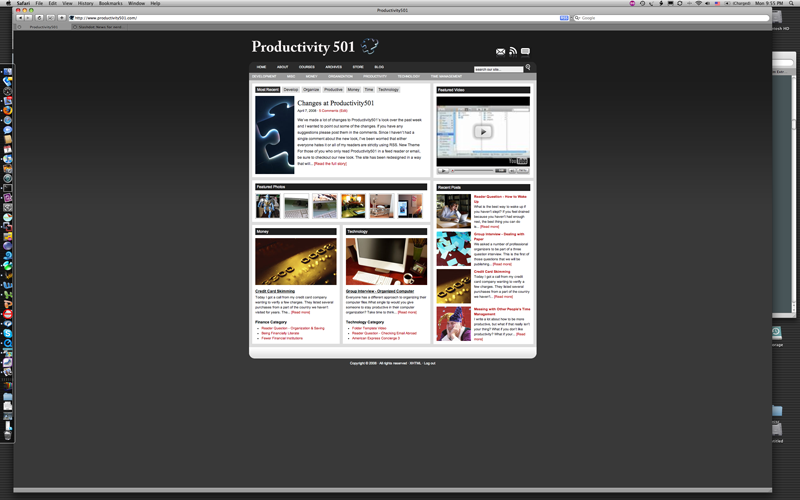
This image is of Productivity501 maximized to fill the screen. While it is a very fine looking site, notice that 2/3rds of the space is just wasted with a lovely black gradient. We could open two more sites of the same width before we’d have to start minimizing and maximizing to jump from window to window.

Some people may prefer to maximize an application in order to block out other windows so they can focus. While this makes sense, the bad habit of maximizing everything isn’t worth developing. If you need to block out other things, minimize all the other windows and keep your desktop clear of clutter.

In some cases maximizing your application will actually make it more difficult to read. If you have a large monitor, try opening a text file, make it fill the screen at a normal sized font and then try to read it. Your aren’t made to read text like a long CNN ticker all the way across your screen. In normal reading your mind uses the shape of the paragraphs to help keep its place. With a super long line of text, it is easier to get lost and you have to spend a lot more effort on the reading process instead of the content.

This isn’t to say you should never fill your screen with an application. There are some applications that work very well full screen–particularly video/audio editing or large spreadsheets. But by default you should try to keep things at their most efficient size so you can open other applications while maintaining full visibility. This is especially true if you are trying to work with more than one application at a time.

2. Optimize Your Applications

Some applications are setup to take advantage of large screens automatically. Excel is a good example. If you fill your screen with Excel it will show you more cells and you can view more of a spread sheet at a time. Other applications take a bit of configuration to make things work efficiently. Since we talking about Office applications lets look at Word.

Word lets you view things in variety of different ways. With a smaller monitor the most effective way to view your page is in Web Layout mode. In Web Layout mode, your text wraps to the width of the screen. This means you can read a complete sentence without needing to scroll side to side - regardless of what zoom level you use or how big of font you are typing with. It isn’t a WYSIWYG layout. It is designed to let you focus on writing not layout.

Web Layout mode is great if you have a smaller monitor or bad eyes. It is also good if you are trying to work with several programs at the same time and need to see your text in a thin window. This image shows an example of Word in Web Layout mode (on the right), Email (center top), preview of this article (center bottom), and the window I’m writing this article in (left).

The Web Layout mode lets the text wrap to fit the screen. This keeps you from having long lines, but the height of the window makes it easy to see a lot of text.

However, on a large screen, if you are only working with Word and no other applications Web Layout doesn’t really take advantage of the larger screen. If you switch to the print layout you can see an entire page as it will be printed. This can be ideal if you are working on a shorter document or working with Word while referencing web pages or other documents in other applications.

If you are just focusing on writing, you may want to change the settings to allow two pages side by side. In the newest version of Office for OS X that is adjusted by going into the View > Zoom settings. You can select how many pages you want to show on the page at the same time and it will automatically adjust the zoom size to make them fit.

Other applications can be optimized in other ways. For example, I do most of my programming in Eclipse. Eclipse organizes open files in tabs. This is very efficient on a small monitor or when you only want to dedicate half your screen to Eclipse and the other half to a web browser or Dreamweaver. However, when you plan to work in Eclipse only for a long period of time you can split the document window in two and display to sets of tabbed documents side by side. This is extremely efficient if you want to work on Java code in one window and the corresponding HTML in another

3. Rotate Your Monitor

Most monitors are wider than they are tall. Most documents and files are longer than they are wide. This means we are constantly trying to fit vertically oriented materials into a horizontal space. Many monitors are made to rotate 90 degrees so they are tall instead of wide. For many types of applications, this is ideal–especially if you have a medium size monitor (22- 24 inches) and are working on something that is vertical and requires a lot of detail. Examples would be doing the layout on a single page flyer that uses a lot of graphics, working on an excel spreadsheet that is very long but not very wide, or working on your dissertation past the point where your eyes start to blur and you need to set your zoom to make the words as big as possible.

Writing code can benefit from a vertically oriented monitor but often it will encourage you to write longer methods than you would with a monitor with less vertical space. A rotated monitor can also be a great way to read on the computer. You can keep things large so there is as little strain on your eyes as possible. The vertical layout allows you to see more of the page while maintaining a shorter side to side scan distance.

4. High Resolution

I have seen people buy a large beautiful monitor capable of very high resolution, decide everything is too small and fix the problem by bumping down the resolution. If you plan to do this, don’t buy a monitor. Go to Walmart and buy a big LCD television with a DVI or VGA input. LCD televisions are lower resolution to start with and you’ll pay a lot less than you will for an equivalent size (physical size) monitor.

Here are two screen shots on my 30 inch display. The first is at 2560 x 1600 pixels. The second is at 1280 x 800 pixels. Notice how much bigger this site looks in the seconds. The site isn’t actually bigger, the screen is just using 4 pixels as a single pixel in the low resolution version. This means windows take a lot more space on the screen since every pixel is now 4 times as big.


With an LCD monitor the highest resolution possible is going to be the optimal resolution. (There may be some exceptions to this in monitors that try to “fake” higher resolution, but this isn’t the norm.) At optimal resolution each pixel in the computer maps to one pixel on the screen. If you use a lower resolution, each pixel in the computer maps to multiple pixels on the screen. This will usually make things look fuzzy.

If you need to make things bigger while maintaining high resolution look in your operating system settings. Windows allows you to change the font size used in menus and on the desktop. OS X was supposed to have the ability to fully scale everything in 10.5, but it didn’t make it into the final version.

Also consider adjusting your applications. For example, in Office you can set your zoom size to make things bigger. In code editors you can adjust your font size. With web browsers you can adjust the font size up and down. (Apple + and Apple - on the mac)

When I first upgraded from a 24 inch monitor to a 30 inch, I had a friend ask me if I found myself pushing back from my desk because of the monitor size. Actually I found the opposite was true. I had to move closer to my monitor than I had with the 24 inch because the new monitor had more pixels per inch than the older one. This meant I needed to be closer to make things the same relative size in my field of vision.

There is talk about making operating systems with complete resolution independence, but that hasn’t happened yet. When it does, you will be able to adjust the size of everything on your screen while still maintaining the best quality possible.

5. Setting Proper Program Sizes

If you don’t feel you are using your space efficiently and your applications just seem to get larger and larger until they fill the screen, here is a trick that might help you. Try temporarily adjusting your resolution down, adjust your programs until you can see them–even if this means simply maximizing all of them, then go back to your regular resolution. The applications should stay the same size (from a pixel standpoint) so when you go back to full resolution they should be much smaller and you can arrange them on your screen however makes the most sense.

This seems to work best if you have a very large monitor with high resolution. On a 20 or 22 inch monitor it might not help you very much.

This is just a trick to help you resize your applications. You can do just as well by watching for empty space and trying to avoid it. If you find you are spreading single applications wider than they need to be, simply resize them down.

This image shows Wordpress when I was writing this article. All the white space on the right hand side is a good indication that I’ve stretched my window more than what is useful. By itself this isn’t a bad thing, but if I have to minimize windows or move things around to get to other applications I’m trying to use at the same time it slows me down. By making the window less wide I now have more room for my other applications. Which means less time spent switching back and forth.

6. Watch Your Workflow

Watch how you actually use your computer. If you are constantly minimizing and maximizing applications, see if there isnt’ a way to keep them both in view at the same time. Even if your monitor isn’t big enough for two applications side by side, you may be able to get some of the benefits by overlapping them with one sticking on the right and one on the left. This lets you switch back and forth without needing to maximize from the dock or menu bar.

Keep in mind that you probably have years of practice in not using a large screen. It will take some time to identify the best way to use it for your particular setup and needs.

Big Monitor, Big Mouse Pad

April 10, 2008

If you get a large monitor, consider getting a larger mouse pad as well.  It will help you navigate the larger screen without requiring that you pick the mouse up and move it.