Online Backup Options

January 30, 2008

I’ve been trying out several online backup tools. I plan to write in more detail about my experiences with each one later, but here is an overview.

My wife and I travel quite a bit. While I can take an extra hard drive with us for backups, but this seems a bit pointless since the biggest threat to my equipment is probably theft. If someone breaks into my hotel room and steals my laptop, they probably aren’t going to overlook an external hard drive. I need a solution that will give me quick access to all my information if my computer is stolen or damaged.

Here are three services I’ve tried.  If you have any suggestions of other services I should check out please post them in the comments.

dot-mac.png

.mac Backup

This would seem like the ideal solution, but until recently .mac accounts only came with 1 GB of storage space. They recently upped this to 10 GB. This is more useful, but it doesn’t take long to fill it up. On the plus side of things, it can be scheduled to run automatically to keep your backup up-to-date.

The .mac Backup software will also allow you to backup to DVDs, CDs and external HDs. So I could conceivably come up with a plan that backs large files that don’t change much up to external media while storing all of my documents that are smaller but change frequently online.

As I move toward a paperless office, my storage needs are just going to go up and I don’t think .mac Backup is going to be able to keep pace. I’m still using it for backing up certain documents just for added redundancy, but I’m not using it as my main backup system.

mozy.png

Mozy

Mozy is an interesting idea. For about $5 per month you can backup everything on your computer. (I have heard that in reality they have a limit of 50 GB of online storage space.) Mozy has a nice looking client that installs and lets you setup your backup to run automatically. However, I was never able to get it to backup more than about 20MB at a time. After weeks of emailing them for support I finally gave up. I have heard that their Windows product is much more stable, but I haven’t tested it. Support said that other OS X users were not having problems.

If you have a PC this might be worth looking into as it is fairly inexpensive.

They also offer a business class service that can backup databases and email servers.

jungle-disk.png

Jungle Disk and Amazon S3

Jungle Disk doesn’t actually store any of your data. They just make a product that allows you to upload your data to Amazon S3. Amazon S3 is a storage service with a pay-as-you-go pricing setup. You pay $0.15 per GB of storage space. So 20 GB of storage will cost you about $3. You also have to pay for your transfers. That is an additional $0.10 per GB transfered into the system and $0.18 per GB transfered out. There is also a $0.01 charge for each PUT, GET, or LIST request.

Jungle Disk automatically keeps track of what changes on your system and uploads a new version of the file whenever necessary to keep the online copy up todate. If make changes to huge files every day, you’ll pay more than if you make changes to small files because the entire file has to be uploaded–not just the changes.

My experience in uploading around 20 GB of data and running a backup for about a week was in the $15 range for the month. Obviously a good deal of the expense is just getting the data uploaded the first time. After the first month I’d expect to pay $5 to $10 per month to Amazon.

The Jungle Disk program is $20 and that gives you a license to install it on as many computers as you like. It works with Windows, Linux and Mac so it is a pretty good deal if you have multiple machines.

Jungle Disk recently came out with an added service that gives you additional capabilities.  Most notable is the block level backup.  If you change a file the software will figure out what is different between the file on your computer and the one on the server and upload just the changes.  If you make a lot of changes to large files this can really reduce the amount of bandwidth required to keep the server in sync.

Don’t forget if you have any suggestions of other services to try, I’d love to hear about them.

Time Machine in the Real World

January 10, 2008

Today I used Time Machine on my first real world data loss problem.  I’m embarrassed to even describe what happened, but here it is anyway.

I am working with an online store that sends me an email each time an order is processed.  At first this was done just for testing, but there is some automation that happens when certain types of orders come into my mailbox.  This is a temporary setup, so I don’t want to take the time to move everything over to a separate mailbox.  The downside is, one of my email accounts gets 10 to 40 emails that are just copies of sales confirmation.  Each one represents an interruption to my day.  So the logical thing to do was to setup a rule to take these out of my mailbox automatically.

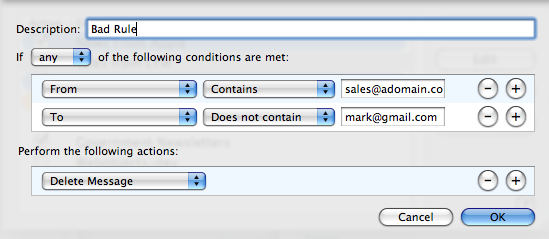
When I started to write the rule I thought about how to identify these messages.  First they call come from sales@adomain.com.  Second they are BCCed to my address, so they aren’t actually addressed to me.  A good rule seemed like one that would check the from address to see if it was from sales@adomain.com and then check the to address to make sure my email wasn’t in the To field.  That way if the system sent any messages directly to me, I’d still get them.

Here is the rule I ended up with:

picture-4.png

Take a quick look and you’ll see a not so subtle error.  If you don’t see it, I’ll explain it in a minute.

Mail asked me if I wanted to apply it to existing messages.  I said  yes.  Then I thought, “why don’t I go ahead and empty the trash just to get rid of all those messages it just moved there.”  (Some of you are seeing the problem already.)  So I emptied the trash.

Several hours later I discovered that every message not sent to mark@gmail.com (not the real address) was missing.  The problem of course was the line that says “If ANY of the following conditions are met”.  I meant to say ALL of the conditions.

I encourage you to take a moment and pretend you just did what I described above.  How much pain would it cause you if you lost all of your emails?  Could you quickly recover your missing emails or would they be gone for ever?

Now I am a bit more prepared than most people.  I have five different types of backups that I could use to restore the mailboxes.  I have a backup to a hard drive, two online backups methods, my mail server backups, and the Time Machine backup.  I don’t have all of these because I’m paranoid–I just happen to be trying out several different types of backup tools right now.  Normally I’d have two different methods for restoring this type of thing–my mail server backup and my nightly hard drive backup.

What follows is a brief description of using Time Machine for this type of recovery.  If you have no interest in OS X, it probably won’t be particularly useful.

I figured this was a good time to give Time Machine a whirl.  The first thing I tried was restoring my entire inbox which consists of six different mailboxes.  I got the emails, but it wasn’t really useful.  When you restore a Mailbox, Time Machine puts it into a special folder called Recovered Mailboxes.

Time Machine lets you see what your inbox looked like at each point it was backed up.  I was able to find the point where all the messages disappeared and choose the previous backup.

Since I have multiple mailboxes I went through and did each one individually.  It looks like there might be a way to recover all of the mailboxes at the same time, however in my testing the results seemed a bit strange.  I have six mailboxes and one of them has several sub-folders.   When I attempted to recover all of the mailboxes at the same time, Time Machine put all of the messages from five mailboxes in one folder into one Recovered Mailboxes folder and the mailbox with subfolders into a different Recovered Mailboxes folder.

Over all the restore process went well and it is something the average user could figure out.  None of my other restore processes are something that could easily be done without a lot of computer experience.