New SnapScan for OS X
November 30, 2007
It looks like there is a new SnapScan out for OS X. I think the scanner itself is about the same, but the new version includes Acrobat 8.0 instead of 7.0. If you are looking at purchasing the scanner, you may want to make sure you have aren’t getting the older version of the software.
The PC version has had Acrobat 8 since June.
Reader Question: Setting Up a Home Office
November 29, 2007
From a reader:
I’ll be moving in a few months and with that comes a new desk and new office space. Do you or any of your readers have any suggestions on what to look at? I’m looking for a smaller desk as all I’ve got is a MacBook Pro and some trays for inboxes. I’ll also need a good filing cabinet to work the GTD system, any recommendations?
I figured I’d shoot this in as this may be helpful to not only myself, but to others looking to “Get Organized!” (Don’t we all try haha).
Also, side note - how about some more video tutorials!
Take care,
Neil
Let me describe what I use. It may not be the best setup for everyone and it is definitely skewed toward equipment that breaks down to be easy to move. My desk and storage area consists of:
- Two large glass tables on metal frames in an L shape. While these don’t offer any storage (other than a keyboard drawer), they break down to nearly flat which makes them extremely easy to move in a crowded moving trailer. I purchased these around 8 years ago from Organized Living
- One file cabinet with two drawers under one of the desks. This is a $20 file cabinet from Wal-mart. I use the top drawer for supplies (extra folders, label maker, envelopes, etc.) and the bottom for hanging files. I use to have a 3 drawer version that lasted me several years, but I gave it away when I moved. This one doesn’t seem as sturdy because the file drawers are starting to bend and they don’t slide as well any more. I’m looking to replace this.
- A chest of 8 drawers behind my desk. This holds things like: extra chargers for computers and phones, shipping supplies, extra pens, extra usb and ethernet cables, etc. This makes up for the fact that my desk doesn’t have drawers.
- A bookshelf in my office. This bookshelf folds flat and is made out of actual wood instead of compressed sawdust. The fact it folds up makes it easy to move–which is why I still have it. My less essential books are in storage, so this holds items I use regularly like: reference books, software packages, stationary, and a bottle of windex and paper towels (hidden behind some books).
- A bookshelf that holds small storage containers in a closet.
We’ve moved around a lot in the last few years, so my setup is fairly spartan. I still have a lot of stuff in storage that I rarely need to access. In some ways this has been an advantage because I’m not cluttering up my work area with 10 years worth of stuff that I might need someday.
Here is a photograph of my current desk setup:

One thing I’ve learned is that having extra work surface isn’t always a good thing. It tends to encourage you to store stuff on your desk instead of putting things away. I’ve considered removing one of my desks, but I’m waiting until I get my new computer system setup to see if this will work or not. Also as my daughter is becoming more mobile, I’ve moved more equipment off the floor and onto the desk where it is out of her reach if she happens to come into the office. It may look funny to have a large shredder on top of my desk, but it isn’t worth the risk of having it anywhere she can get to it.
Up until recently I would have suggested an inexpensive file cabinet from Wal-mart. However my current one is bending and the handles keep falling off–and it is only 6 months old. Personally what I would like is a single drawer for files with two pencil drawers on top. I had one of these at a previous job an it worked very well. Unfortunately while I was on my last trip, the local office supply store had and auction and shutdown. I haven’t had a chance to go to a larger city and really look around to see what is available.
One thing to make sure you look for is built in rails for hanging files. If they don’t have this, you’ll have to purchase a metal frame to go in the drawer. You can make this work, but it isn’t very convenient at all.
As far as a desk goes, if I wasn’t planning on moving and had a lot of money to spend, I would probably go with a large wooden desk with plenty of storage space. My grandparents have an old roll top desk that use to be in the Kansas capital building. It is simply amazing, but I don’t know if I could fit my monitor in it very easily.
If I was looking for a good desk that I wanted to be able to move and wanted to save money, I think I’d take a hint from Amazon. I don’t know if it is still this way, but in the early days of Amazon all the desks were made out of a door with 4×4 nailed on as legs. This gave them a great deal of surface area and a total cost of maybe $40 or so. This was in sharp contrast to the dot-coms that were giving everyone Aeron chairs.
I would probably use a smooth door without any pre-drilled holes laid across two two-drawer file cabinets. If I could find two nice looking saw horses, I might use those instead of file cabinets if I needed a different height.
Another option is to build your desk into the room. A desk attached directly to the wall can help you maximize the amount of space in a small room and it doesn’t have to be particularly expensive. One advantage of this route is that you can customize it to really fit your needs instead of relying on something that was built for the lowest common denominator user.
For an office chair, let me say that I’ve never been impressed with the chairs at Office Max/Office Depot type stores. I’m not sure why, but they always seem cheap to me. I finally found an office chair I liked at a small out of the way office supply store. It is a HON model 2091SR. The leather is starting to show a little age on some seams after 7 years of use, but I’m still very happy with it. Now days I believe it runs $250 to $350.
One of the most important things to consider in setting up your office is ergonomics. You want to make sure you don’t set things up in a way that you can hurt yourself. My current office works pretty well, but I find I usually use the keyboard on my laptop. While the height works well for preventing wrist strain, it forces me into bad posture with my back. My plan is to switch from using my laptop keyboard at my desk and start using a bluetooth keyboard on my keyboard tray.
Hopefully that is some useful info. If you happen to live near an IKEA, I would definately go there and look around. Even if you don’t buy anything, you’ll probably get some good ideas about how to make the most efficient use of your space.
Tuesday’s Tip: College Records
November 27, 2007
When I was in college I quickly learned how important it was to keep records. You can’t rely on your university to keep track of everything correctly. Maybe they will, but just in case they make a mistake you need to be prepared.
One habit I formed early on in college was to get a copy of my transcript each semester. One semester there were an extra 15 hours of credits on the transcript for classes I had not taken. After doing some checking, it became clear that they had accidentally given me credit for someone else’s work. I explained it to the university and they straightened out the records. However, I imagine it was much easier to get something taken off than it would be to get something added. By keeping a copy of my transcript, I had a very simple way to prove what classes I had taken if my credits ever accidentally were given to someone else.
About eight years later I was taking classes through Harvard’s extension school toward a second Master’s degree. One day I was looking over the requirements and discovered that all of the work I had done wasn’t going to count. There was a requirement that you take your first 3 courses in a particular order and I hadn’t done that. Obviously I was very concerned because I had already earned about 20 hours toward the degree.
I went to my file and found a dated print out of the same page that listed a different set of requirement–requirements that I had followed. I went to the office and showed them my printout and asked if the requirements had changed. They said yes it had and I would only have to meet the old requirements for my program.
I could have probably gotten it straightened out without having my print out, but it was much easier to deal with since I had kept good records.
Paperless Update
November 25, 2007
I have still been working on my paperless experiment, but most of my planning has revolved around trying to figure out how to keep from wasting money on something only to discover I have to buy something else.
I’ve also been working on the workflow side of things in trying to keep my documents digital and not simply revert to printing them out whenever I need to fax or sign them. I have had pretty good luck with some online faxing services that I hope to write more about in another post.
Also I’ve had a chance to really challenge the ScanSnap scanner. While it doesn’t compete with a $10,000 sheet fed scanner, I’ve been very impressed. The other day my grandmother had about 450 photos in a box that I offered to scan for her. There were all different sizes, some had sticky tape on the back, etc. The scanner handled them very well. It worked best with 10 to 20 at a time, but I was able to scan the entire box in about 20 minutes of reloading the scanner and then waiting for it to run. She has another 4 boxes for me to scan now.
Another part of being paperless that I’ve been working with a lot is the backup process. I’ve been looking at Apple’s Backup program, Mozy, and Jungle Disk. Apple’s Backup program is ok, but you are very limited on the amount of storage space. I haven’t been able to get Mozy to work. I’ve been working with their tech support for over a month now and I’m just about to throw in the towel. So far JungleDisk seems to be working well and I’ve been happy with it–once I got use to a few odd quirks. I plan on doing a more detailed review of each of these a little later–hopefully after I get Mozy working.
Don’t forget about the Belkin Concealed Powerstrip Contest. To enter you just have to sign up to get site updates via email. (You can unsubscribe after the contest if you like.)
Tuesday’s Tip: Pennies
November 20, 2007
I don’t know if this is actually a productivity tip or not. It might actually waste more time than anything else, but I feel like it is a good thing.
Do you have a huge collection of pennies that are building up? My wife and I have a metal box full of our lose change. We run most of our expenses through our credit cards, but we still end up with a bunch of coins. I have found a use for pennies.
The toll roads in Chicago take pennies. I don’t know if this works in many other major areas or not. There is something deeply satisfying about throwing 80 pennies into the machine to pay for your toll. Of course you probably don’t want to sit at the toll both counting out 80 pennies. If you have a passenger in the car that can be their job. Otherwise you can count out the pennies into appropriate quantities when you are at home and keep them in the car for use while you are driving.
Let me reiterate that this is unlikely to directly make you more productive, but for me it provides me with a deep inner happiness and when I’m happy I am more productive.
Amazon Kindle
November 19, 2007
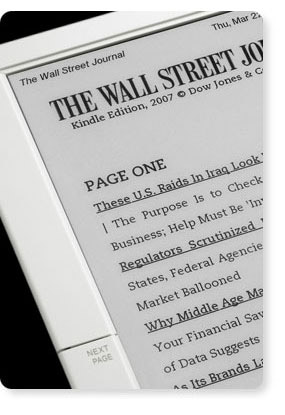
Today Amazon released their ebook reader called Kindle. I have the original Sony Reader and I’ve been pretty impressed with it. The new version makes a few small improvements, but is still a similar device.
Even though the Kindle is based on the same e-ink technology, it takes a very different approach than Sony. One of the biggest differences it the way books are distributed. Kindle comes with built in EVDO networking. EVDO is the same technology used for high speed connections over the cellular network by Sprint and Verizon (AT&T uses something different). Instead of requiring users to get a data plan for their Kindle, Amazon packages the cost of the wireless service into the books they sell.
Most of the books look like they sell for $9.99, but the place where I think the Kindle will really shine is the magazine and newspaper subscriptions. Most of the time when I buy a book, I want to keep the physical copy on my shelf. There are some technical reference books that I don’t care to keep around because they are outdated so quickly, but for non-technical works I want to be able to pass them on to someone else, etc. Magazines and newspapers are different. I expect to throw these away when I’m done reading them.
The Kindle allows you to subscribe to major newspapers and magazines and they will be automatically downloaded to your device. This is pretty attractive. I was trying to subscribe to the Wall Street Journal last month only to find that they don’t deliver to this area. I would have had to wait a few days to get it through the mail, so I didn’t sign up. With the Kindle I could have it on my device first thing in the morning.
If you have Word documents you want to read, you can simply email them to the device. Amazon will take care of changing the formating when it transfers it over the wireless network. You pay a small fee for this transfer as you do when subscribing to blogs.
The device also lets you browse Wikipedia and it appears that this is done at no charge. Here are a few other highlights:
- The ability to search all of your content. (This is something that the Sony doesn’t do.)
- Full thumb style keyboard.
- Bookmark pages and take notes.
- Next and Back bars on the side, which try to mimic the actual turning of book pages.
- Memory slot for additional storage space.
- Purchases are backed up on Amazon so you can restore them if your Kindle is lost or stolen.
- Built in dictionary. You can highlight a word and see the definition. (I think this is a huge advantage.)
All in all it sounds like an excellent start for Amazon. My Sony Reader does what I need for now, so I probably won’t buy a Kindle for some time. For me the the “holy grail” of ebook readers is something that has a 8.5 x 11 screen and allows you to display PDFs. The would open the device up to people who have volumes of PDF documents–especially students dealing with journal articles. It would also allow you to read documents you’ve scanned in from regular paper. The Sony Reader claims to read PDFs, but it is pretty much unusable. For the type of books you are likely to buy on Amazon the Kindle seems to really hit the mark.
Tuesday’s Tip: Effective Backups
November 13, 2007
There are few things that can ruin your productivity like losing the hard drive on your computer. Here are a few tips that work well for me when it comes to backing up my computer.
- Take some time to imagine the worst case scenario and how you would handle it. For example, what would you do if your laptop was dropped? What would you need to do if it was stolen?
- Make sure you have some type of offsite backup. I put a copy of important files on a DVD and put it in a bank lockbox. I only do this once or twice a year, but it gives me something to go back to if necessary.
- Use an external hard drive for backup. This is usually a lot faster than backing up to DVDs or CDs. The easier a backup is to do the more often you’ll do it.
- Create a bootable backup. My primary backup is done by creating a bootable image on an external hard drive. If I were to lose my computer, I could use another computer to boot to the external drive and start working with all my programs and files from my last backup.
- Don’t forget about backing up important software. If you have purchased software over the internet, you may not have any CDs for it. Make sure you could get these back if you lost your drive.
- Automate as much as possible. The best backups happen automatically without any thought on your part.
- Test your backups. I have seen people with very nice automated backup processes in dire straits because they never tested the backup. When I am designing a backup strategy for a client, I’ll usually try to create an automatic backup testing process as well. For the home user it might be just a matter of testing to make sure you can open the files you’ve backed up every once in a while.
- Don’t trust any media. Hard drives go bad. CDs go bad. Diskettes go bad. Memory sticks go bad. Pretty much anywhere you can store your data has some risk that it will go bad and your data will be lost. You should have your important data in more than one place so you won’t suffer a total lost if you hard drive fails and your backup media fails as well.
- Label your backups. Doing backups is great, but unless you label your media, it will be very difficult to figure out what is stored where. You can easily lose a bunch of time sorting through 100 unlabeled CDs looking for the most recent backup.
Correct Way to Send Out Group Emails
November 12, 2007
When you send out an email to a group of people, simply putting them all on the to field is bad form. First, it exposes all the email addresses, so everyone can see everyone else’s emails. Second, if someone accidentally hits “Reply All” instead of “Reply” their response can easily be sent to the entire group instead of just you.
A few years ago, I got an email from a friend who was studying at Yale. It was a yearly update about what was going on in his life. He put everyone he knew in the To: field. This included old classmates, current professors, relatives, etc.
One of his friends got the message and decided to respond with an update of all the stuff going on in her life. She accidentally hit the “Reply All” button and sent a bunch of personal details to a list of mostly complete strangers.
There was another case awhile back where a real estate company sent out a message to a bunch of people looking for apartments in New York. Everyone was listed in the To field which provided a very handy list that any recipient could quickly sell to a competitive real estate company.
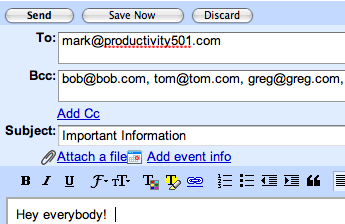
There is a simple way to prevent this. Simply put yourself in the To field and everyone else in the BCC field. That way both “Reply” and “Reply All” will only come back to you and recipients can’t see each other’s email addresses.

This image shows how this type of setup should look in Gmail. Often the BCC field is hidden or needs to be expanded before you can add people to it. If you can’t find the BCC field, look around or read the help file. It is almost certainly there, but you may have to turn it on.
Contest - Concealed Powerstrip Giveaway
November 9, 2007
I previously wrote about the Belkin Concealed Powerstrip. With 10 outlets, wire routing, and a cover to keep everything out of sight, it is the ideal way to organize under your desk.
We are going to be giving one away here at Productivity501. To enter simply sign up to receive the email version of this site in the right hand column. Once you verify your signup (you’ll be sent an email with a link), you’ll be entered in the contest. If you currently receive the email, you are entered already.
Right now, there are about 1,000 email subscribers. Once we reach 1250 subscribers, we’ll give away the Powerstrip to a randomly selected person from the list.
Anyone can enter, but I’ll only ship to the US. It is a little big so international shipping could easily be more expensive than the actual item. Also don’t forget to watch for the verification email. You should get it a few minutes after signing up.
On Scanning Your Signature
November 9, 2007
Several people have commented that scanning your signature is a bad idea because if someone got a hold of the file they could sign away everything you own. Obviously you should keep the file private. I wouldn’t recommend attaching it to each of your emails or putting it on a web page or anything like that, but it is probably no more risky than anything else you do on a regular basis.
Consider the following:
- If you ever write a check or sign a credit card receipt at a store, you are essentially handing a stranger a copy of your signature already. They could easily digitize it using the process I’ve just shown and use to sign things as you.
- Most of the time when you sign something, does anyone verify that it is indeed your signature? Most stores don’t even verify that your signature matches the back of a credit card. Someone could just as easily sign something as you using their own handwriting and it would probably slip through just fine. If you apply for a credit card, they aren’t verifying your signature against anything. If someone wants to get a credit card in your name, they aren’t going to need your signature to do it.
- Anything important is going to require more than just a signature. If you buy a house or something like that, they are going to require a notarized signature. That means that someone verified you are who you say before sign the document.
I’m not saying that someone getting your signature couldn’t prove to be inconvenient, but I can’t think of much someone could do that they couldn’t do already. Especially because most people’s signatures are widely distributed already and it wouldn’t take much effort to get a copy.


Recent Comments