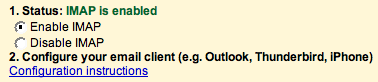
Previously I wrote about why I prefer to use IMAP for my primary email accounts. Gmail recently enabled IMAP access for their accounts. Not only does it work for accounts at gmail.com, but it also works with their hosted apps account where you use your own domain. Productivity501.com uses Google's hosted apps for email, so IMAP is a very welcome addition. You can find this control by going to Settings > Forwarding POP & IMAP. Google did some creative things to make their concept of tags work within IMAP. Basically each tag becomes a folder, but that means it is possible to have the same item in multiple folders. There is also a folder called "All Mail" that will hold your … [Read more...] about IMAP for Gmail
Archives for October 2007
Tuesday’s Tip: Label Your Warts
I'm referring to "Wall Warts" those blocks of plastic that transform standard house current into lower voltage needed by electronic devices. Modern electronic gadgets require power. And (if you haven't noticed) every device seems to require a slightly different type of power and slightly different type of connector. When you are setting up your office buying one item at a time, it isn't really any problem to figure out what goes where. However, if you have to move your office around, you are going to quickly discover that the power supplies all look pretty much the same and worse yet, some use the same connectors but supply different amounts of power. No big deal because you can just … [Read more...] about Tuesday’s Tip: Label Your Warts
Self Inflicted Insult
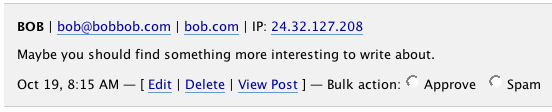
Most of the readers of Productivity501 are very nice and gracious. That is why I was surprised when I found this comment in my moderation queue. When I read this, I was at first a little hurt. I consoled myself by deciding it was some type of new blog spam or something. As I got ready to delete the comment I realized that the ip address looked familiar. It turns out that I posted the comment as the first thing that came to mind when I was trying to solve a problem with the email notifications last week. I had forgotten about it. I felt better knowing that my insult was self inflicted. In college I had a friend who would call himself and leave encouraging messages on his … [Read more...] about Self Inflicted Insult
USPS Online Orders

If you go to www.usps.com and order stamps, you'll find there is a $1 shipping/handling charge. This has always puzzled me. I would think that the Postal Service of all places would deliver stamps for free. Lets assume that the pricing is a well thought out business decision. Evidently it costs the Post Office roughly $1 more per stamp order to sell you a package of stamps online than it costs for you to walk in, talk to a clerk and deal with the transaction in person. This seems surprising to me. I would expect the cost of providing stamps from one centralized location would be cheaper than paying people to do it in person from the physical offices. Here are a couple reasons this … [Read more...] about USPS Online Orders
Dvorak Keyboard
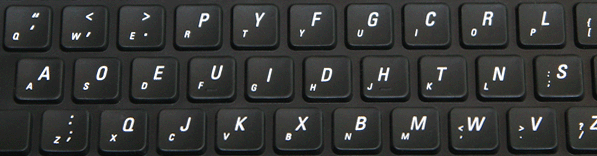
Michael Sampson is trying to switch to the Dvorak keyboard. The Dvorak keyboard is arranged differently to help you type faster and with less finger movement. While the advantages sound promising, I have never quite understood why you'd want to switch to the Dvorak keyboard if you are already proficient at QWERTY. . I type somewhere between 50 to 75 words pre minute, but it is very rare for me to type at those speeds because I usually spend more time thinking about what I'm writing than I do actually writing. Maybe I just think slower than most people The basis for most of the claims of Dvorak's keyboard was done for the Navy in 1944. However, it appears that the report is fairly … [Read more...] about Dvorak Keyboard
Dealing with Signatures in a Paperless Office
With email, one of the main reasons I have to print things off is to sign them and fax or mail them back. As I transition to a paperless office I'm having to look at ways to sign documents without printing them out. There are really two types of signatures. The first is just an image of your handwritten signature. The second is a digital addition to the file that "proves" you were the one that signed it. By now digital signatures should be common, but they aren't. I'm not saying they aren't used in big companies, but the average web user isn't signing emails or anything else digitally. Right now most of the paper that requires my signatures needs to be faxed to someone. If I want … [Read more...] about Dealing with Signatures in a Paperless Office
Quick Update: Paperless Office
I am still working on my paperless office experiment. I've had an huge influx of consulting requests in the past 60 days, so I haven't dedicated as much time to this as I had originally planned. Here is a quick update on what I've found so far. Optical Character Recognition One of the most important parts of being able to search for your documents later is recognizing it as text. A generic scanning process simply recognizes the pixels and doesn't actually turn them into words. (A simple test to see if a PDF is storing data as pixels or text is to try to copy and paste a paragraph into a text editor.) I've found that for a proper workflow I need to make sure that the character … [Read more...] about Quick Update: Paperless Office
Tuesday’s Tip: Travel Paper Folder
We have done more than our fair share of traveling. When you are going to another country there is always a certain amount of paperwork you have to take with you. When you are traveling with a pet you have even more requirements. Years ago, we started a folder for Travel documents that has everything we might need for traveling. If a copy might work, we have several copies in the folder ready to go. That way when we decide to take a trip, we have one place to go for everything we might need including, copies of our birth certificates, marriage license, passports, dog's immunization records, etc. Having everything in one place has saved us many hours because we don't have to think … [Read more...] about Tuesday’s Tip: Travel Paper Folder
Paper that wants to be Shredded
Someone sent me this video of paper that wants to be shredded. It reminded me of a client of mine. I was coming in to do some consulting so I asked for a copy of their organizational chart to get a better idea of how everything was organized. I carried it around with me throughout their facility for about a week as a reference. Often I'd set it down on a table or desk while talking with an employee. When I really started looking at it in detail, I discovered that it had the salaries of all the executive level staff penciled in under their names! While it wasn't a problem for me to know their salaries, they should have at least warned me about the additional information. … [Read more...] about Paper that wants to be Shredded
The Child Who Has Everything
On the front page of Amazon I saw a list of items that said they were for "the child who had everything". While there were some very interesting toys, I got to thinking about that designation. It definitely isn't how I want my child described. Every parent wants to give their kids nice things and most parents try to give their kids things that they didn't have growing up. This isn't always a good thing. I'm not saying it is a bad idea to help your kids obtain a better education than what you received, but when the only thing your kid doesn't have is a $10,000 replica space suit you've got to question how well you are preparing them for the real world. A lot of my views on money were … [Read more...] about The Child Who Has Everything
Tuesday’s Tip: Get a Good Pen
This may seem trivial and not even worth mentioning, but I think it is important. Your performance is related to how comfortable you are with your tools. Even if you spend most of your time on the computer, a good writing instrument is a necessary tool for getting work done. Since you have to use a pen, you might as well get one that you like. This doesn't mean you have to go out and buy a $50 ink pen (especially if you tend to lose them), but put a little thought into getting pens that you actually enjoy using. It is a small thing, but the happier you are, the better your productivity. … [Read more...] about Tuesday’s Tip: Get a Good Pen